https://drive.google.com/file/d/1i7M3cUaDeQIQr24ET8oUqV9k3iqEfIXN/view?usp=sharing
Pls find the log file for the errors 403 & 500
I can't see any error different than
2022-10-19 12:55:40.638 +08:00 [ERR] GetHealthReport threw an exception when trying to get report from /health-status configured with name BIMS Health Status.
System.InvalidOperationException: An invalid request URI was provided. The request URI must either be an absolute URI or BaseAddress must be set.
   at System.Net.Http.HttpClient.PrepareRequestMessage(HttpRequestMessage request)
   at System.Net.Http.HttpClient.CheckRequestBeforeSend(HttpRequestMessage request)
   at System.Net.Http.HttpClient.SendAsync(HttpRequestMessage request, HttpCompletionOption completionOption, CancellationToken cancellationToken)
   at System.Net.Http.HttpClient.GetAsync(Uri requestUri)
   at HealthChecks.UI.Core.HostedService.HealthCheckReportCollector.GetHealthReport(HealthCheckConfiguration configuration)
Did you remove or modify the default healthcheck configuration?
Do you use Blazor WebAssembly or Blazor Server?
Hi @Naren
If you ask current language of current requrest, you can access CultureInfo.CurrentCulture
If do you want to list of all languages of the application, you can inject ILanguageProvider and access localization options by calling GetLanguagesAsync() method on it.
public class MyService : ITransientDependency
{
	protected ILanguageProvider LanguageProvider { get; }
	public MyService(ILanguageProvider languageProvider)
	{
		LanguageProvider = languageProvider;
	}

	public async Task DoSomethingAsync()
	{
		var languages = await LanguageProvider.GetLanguagesAsync();
		var currentLanguage = languages.FindByCulture(
					CultureInfo.CurrentCulture.Name,
					CultureInfo.CurrentUICulture.Name);

		// ...
	}
}
We can answer the rest of them after you provide specific logs about errors
I have investigated this issue and it's correct. global.js is initialized twice because authentication check should be done before rendering layout. It checks authentication state and initializes global.js after authentication check.
It seems second one isn't downloaded from server, browser serves it from memory cache.
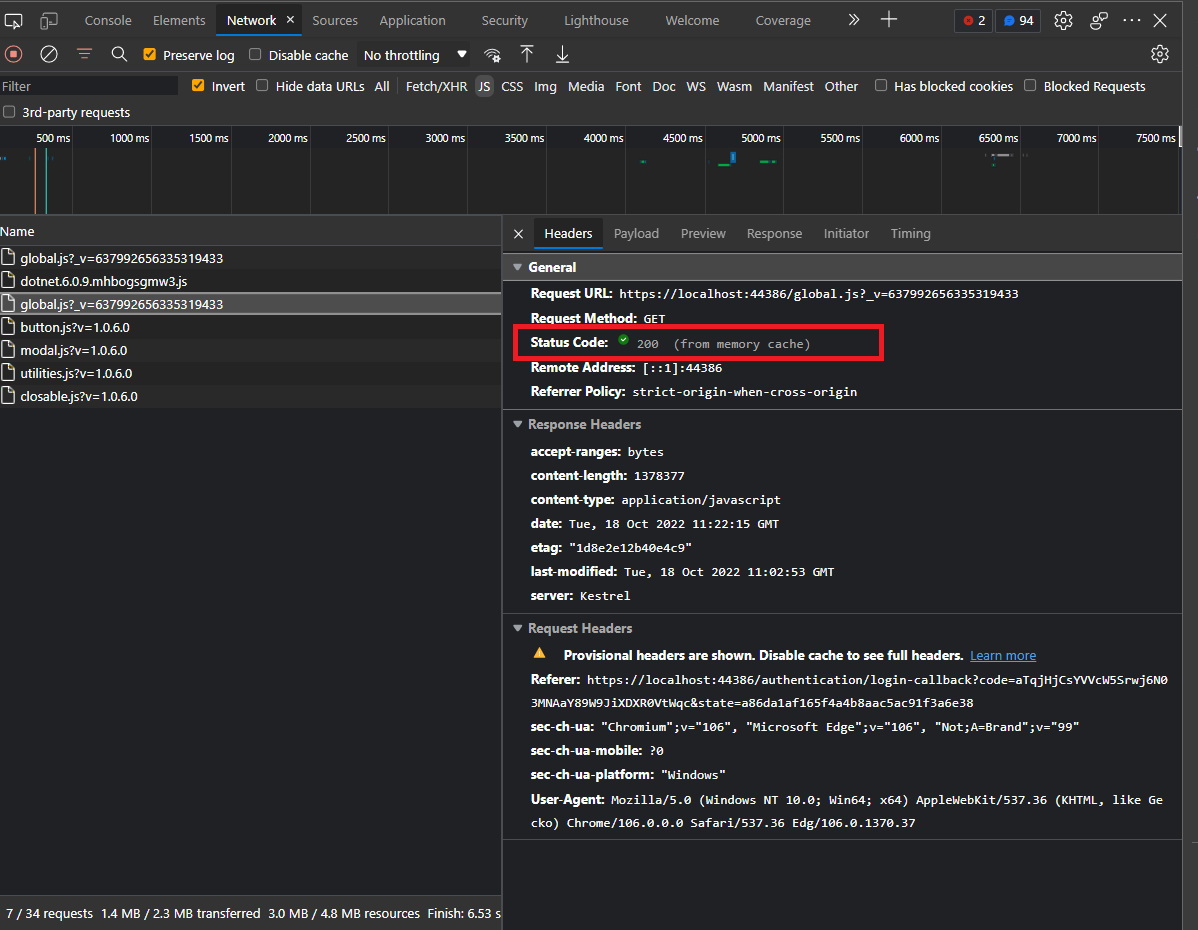
Do you use Blazor Wasm or Blazor Server?
We have fixed the issue that you mentioned lastly and it'll be released with next LeptonX release
Thank you. That information is very helpful. However, what I'm attempting to do here, and maybe this is my fault for not explaining correctly. My customer is wanting to have a custom CRM application that integrates with Stripe. The idea is that they would create a new customer from within the application, process payment if needed, and see regular updates on the status of each subscription. So, something like the following:
- Customer is created.
- Customer is assigned a subscription.
- Administrator would like to see the status of this subscription (Active, Canceled, etc.).
If you want to use ABP Commercial Edition Subscription logic, customers have to be Tenants instead of custom entities. You should implement your own logic for your custom entities if it's not Tenant entity.
Hi @dev1_premierpoint
Can you try SelectedValueChanged property instead of onselect?
For more information you can visit Blazorise DropdownList documentation https://blazorise.com/docs/extensions/dropdownlist
Can you check this? https://support.abp.io/QA/Questions/3592/How-do-I-force-the-Blazor-toolbar-to-refresh#answer-2377648f-0b46-ed07-7678-3a05dc1c9234
It's a good demonstrate for managing toolbaritems according to other events in application.
You can define your own custom component instead of using .AddButton() method and that component can decide rendering itself or not according to a data.









