





Web Application Development Tutorial - Part 3: Creating, Updating and Deleting Books
Creating a New Book
In this section, you will learn how to create a new modal dialog form to create a new book. Since we've inherited from the AbpCrudPageBase, we only need to develop the view part.
Add a "New Button" Button
Open the Books.razor and replace the <MudCardHeader> section with the following code:
<MudCardHeader>
    <CardHeaderContent>
        <MudText Typo="Typo.h4">@L["Books"]</MudText>
    </CardHeaderContent>
    <CardHeaderActions>
        <MudButton Variant="Variant.Filled"
                   Color="Color.Primary"
                   OnClick="OpenCreateDialogAsync">@L["NewBook"]</MudButton>
    </CardHeaderActions>
</MudCardHeader>
This will change the card header by adding a "New book" button to the right side:

Now, we can add a modal that will be opened when we click the button.
Book Creation Modal
Open the Books.razor and add the following code to the end of the page:
<MudDialog @ref="_createDialog" Options="@(new DialogOptions { MaxWidth = MaxWidth.Medium, FullWidth = true })">
    <TitleContent>
        <MudText Typo="Typo.h6">@L["NewBook"]</MudText>
    </TitleContent>
    <DialogContent>
        <MudForm @ref="@CreateFormRef" Model="@NewEntity">
            <MudStack Spacing="3">
                <MudTextField @bind-Value="@NewEntity.Name"
                              Label="@L["Name"]"
                              For="@(() => NewEntity.Name)"
                              Required="true" />
                <MudSelect T="BookType"
                           @bind-Value="@NewEntity.Type"
                           Label="@L["Type"]">
                    @foreach (BookType bookTypeValue in Enum.GetValues(typeof(BookType)))
                    {
                        <MudSelectItem Value="@bookTypeValue">@L[$"Enum:BookType.{(int)bookTypeValue}"]</MudSelectItem>
                    }
                </MudSelect>
                <MudDatePicker @bind-Date="@NewEntity.PublishDate"
                               Label="@L["PublishDate"]" />
                <MudNumericField T="float"
                                 @bind-Value="@NewEntity.Price"
                                 Label="@L["Price"]" />
            </MudStack>
        </MudForm>
    </DialogContent>
    <DialogActions>
        <MudButton OnClick="CloseCreateDialogAsync">@L["Cancel"]</MudButton>
        <MudButton Variant="Variant.Filled"
                   Color="Color.Primary"
                   OnClick="CreateEntityAsync">@L["Save"]</MudButton>
    </DialogActions>
</MudDialog>
- The form uses
[Required]/DataAnnotations for validation; messages are localized via the sameAbpResourcelocalization system. - The
_createDialogfield,CloseCreateDialogAsync,CreateFormRefandCreateEntityAsyncare all defined inAbpMudCrudPageBase. Check the MudBlazor documentation if you want to understand theMudDialogand other components. MudDialog.Optionswidens the dialog (MaxWidth.Medium+FullWidth) so the form fields are not cramped.MudStackwithSpacing="3"keeps the inputs visually separated; without it MudBlazor inputs render flush against each other.MudDatePicker.@bind-Daterequires a nullableDateTime?. If your DTO uses non-nullableDateTime, change it toDateTime?(public DateTime? PublishDate { get; set; }) when using the MudBlazor variant.
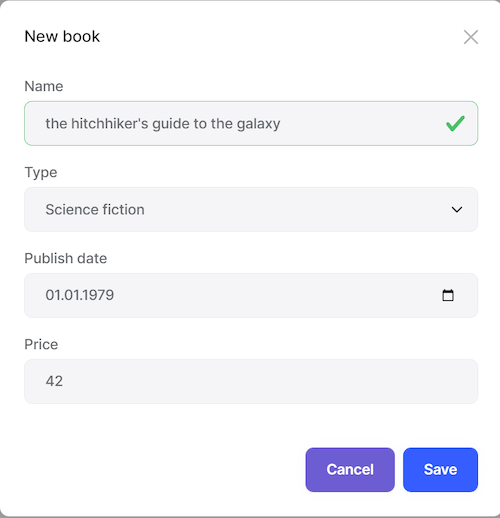
That's all. Run the application and try to add a new book:
Updating a Book
Editing a book is similar to creating a new book.
Actions Dropdown
Open the Books.razor and add the following TemplateColumn as the first column inside the <Columns> section of the MudDataGrid:
<TemplateColumn T="BookDto" Title="@L["Actions"]" Sortable="false">
    <CellTemplate>
        <MudMenu Icon="@Icons.Material.Filled.MoreVert" Dense="true">
            <MudMenuItem OnClick="@(() => OpenEditDialogAsync(context.Item))">
                @L["Edit"]
            </MudMenuItem>
        </MudMenu>
    </CellTemplate>
</TemplateColumn>
OpenEditDialogAsyncis defined in the base class which takes the entity (book) to edit.
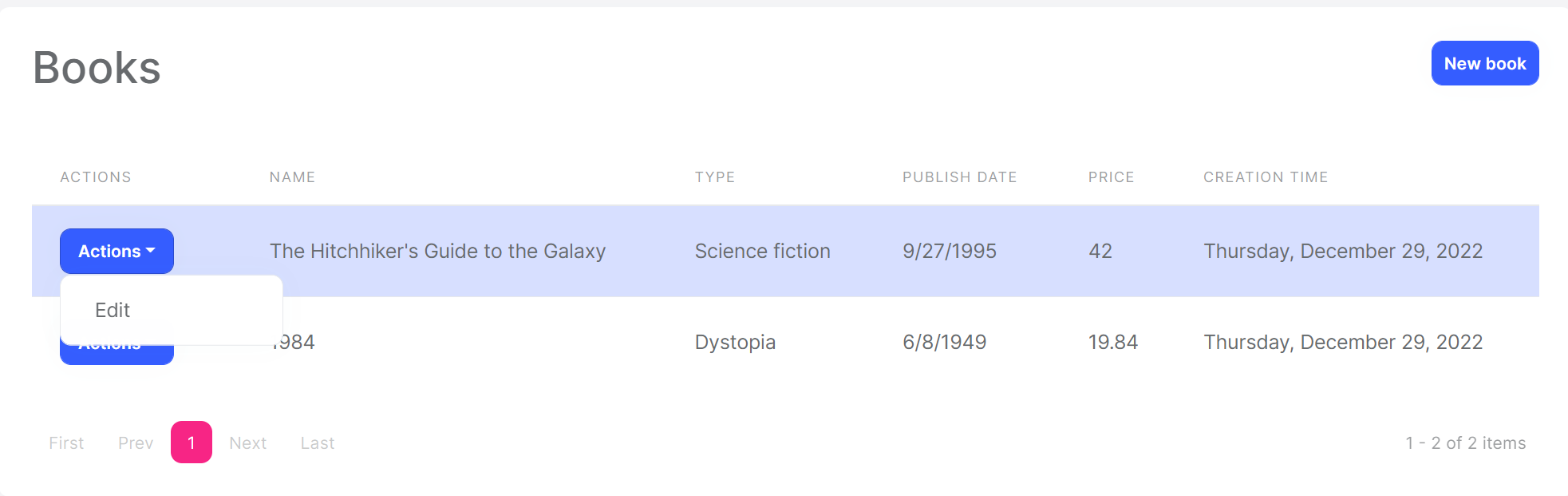
This renders an "Actions" dropdown menu (MudMenu) for each row in the data grid. We will add the Delete menu item later in the Deleting a Book section.
Edit Modal
We can now define a modal to edit the book. Add the following code to the end of the Books.razor page:
<MudDialog @ref="_editDialog" Options="@(new DialogOptions { MaxWidth = MaxWidth.Medium, FullWidth = true })">
    <TitleContent>
        <MudText Typo="Typo.h6">@EditingEntity.Name</MudText>
    </TitleContent>
    <DialogContent>
        <MudForm @ref="@EditFormRef" Model="@EditingEntity">
            <MudStack Spacing="3">
                <MudTextField @bind-Value="@EditingEntity.Name"
                              Label="@L["Name"]"
                              For="@(() => EditingEntity.Name)"
                              Required="true" />
                <MudSelect T="BookType"
                           @bind-Value="@EditingEntity.Type"
                           Label="@L["Type"]">
                    @foreach (BookType bookTypeValue in Enum.GetValues(typeof(BookType)))
                    {
                        <MudSelectItem Value="@bookTypeValue">@L[$"Enum:BookType.{(int)bookTypeValue}"]</MudSelectItem>
                    }
                </MudSelect>
                <MudDatePicker @bind-Date="@EditingEntity.PublishDate"
                               Label="@L["PublishDate"]" />
                <MudNumericField T="float"
                                 @bind-Value="@EditingEntity.Price"
                                 Label="@L["Price"]" />
            </MudStack>
        </MudForm>
    </DialogContent>
    <DialogActions>
        <MudButton OnClick="CloseEditDialogAsync">@L["Cancel"]</MudButton>
        <MudButton Variant="Variant.Filled"
                   Color="Color.Primary"
                   OnClick="UpdateEntityAsync">@L["Save"]</MudButton>
    </DialogActions>
</MudDialog>
Mapperly Configuration
The base AbpCrudPageBase uses the object to object mapping system to convert an incoming BookDto object to a CreateUpdateBookDto object. So, we need to define the mapping.
Open the BookStoreBlazorMappers inside the Acme.BookStore.Blazor.Client project and change the content as the following:
using Riok.Mapperly.Abstractions;
using Volo.Abp.Mapperly;

namespace Acme.BookStore.Blazor.Client;

[Mapper]
public partial class BookDtoToCreateUpdateBookDtoMapper : MapperBase<BookDto, CreateUpdateBookDto>
{
    public override partial CreateUpdateBookDto Map(BookDto source);

    public override partial void Map(BookDto source, CreateUpdateBookDto destination);
}
Test the Editing Modal
You can now run the application and try to edit a book.
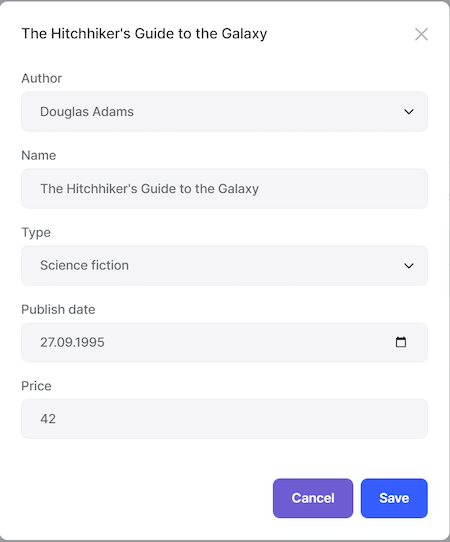
Tip: Try to leave the Name field empty and submit the form to show the validation error message.
Deleting a Book
Open the Books.razor page and add the following entity action code under the "Edit" action.
Add the following MudMenuItem after the "Edit" item inside the actions MudMenu:
<MudMenuItem OnClick="@(async () => {
    if (await Message.Confirm(GetDeleteConfirmationMessage(context.Item)))
    {
        await DeleteEntityAsync(context.Item);
    }
})">
    @L["Delete"]
</MudMenuItem>
DeleteEntityAsyncis defined in the base class that deletes the entity by performing a call to the server.ConfirmationMessageis a callback to show a confirmation message before executing the action.GetDeleteConfirmationMessageis defined in the base class. You can override this method (or pass another value to theConfirmationMessageparameter) to customize the localization message.
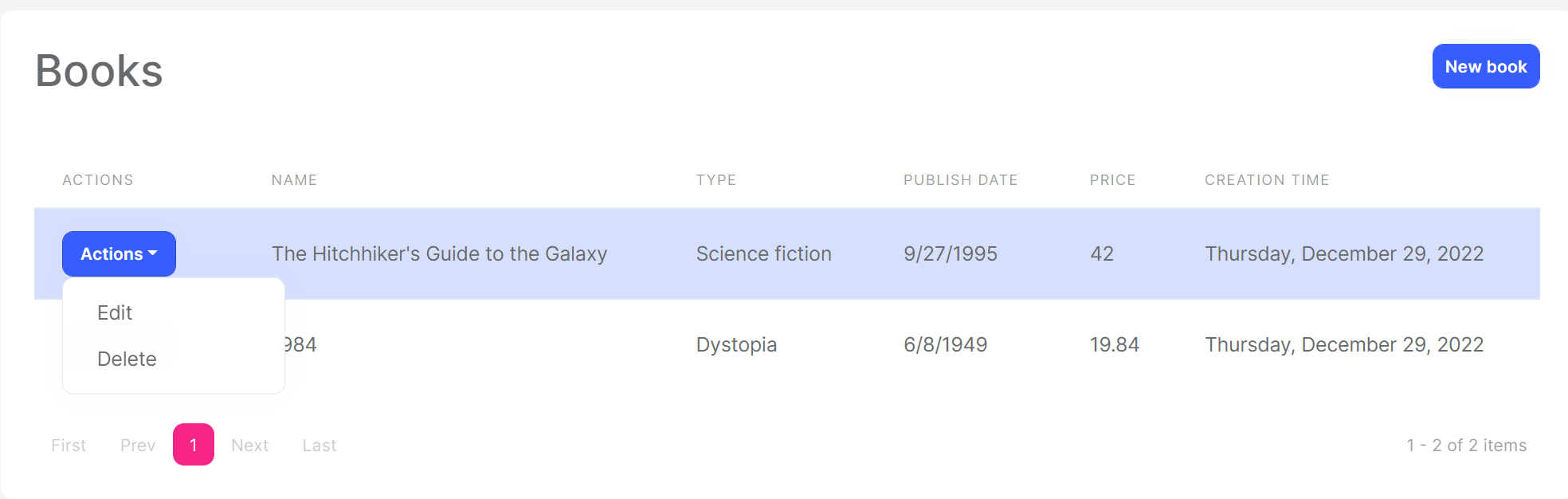
The "Actions" button becomes a dropdown since it has two actions now:
Run the application and try to delete a book.
Full CRUD UI Code
Here's the complete code to create the book management CRUD page, that has been developed in the last two parts:
@page "/books"
@using Volo.Abp.Application.Dtos
@using Acme.BookStore.Books
@using Acme.BookStore.Localization
@using Microsoft.Extensions.Localization
@inherits AbpMudCrudPageBase<IBookAppService, BookDto, Guid, PagedAndSortedResultRequestDto, CreateUpdateBookDto>

<MudCard>
    <MudCardHeader>
        <CardHeaderContent>
            <MudText Typo="Typo.h4">@L["Books"]</MudText>
        </CardHeaderContent>
        <CardHeaderActions>
            <MudButton Variant="Variant.Filled"
                       Color="Color.Primary"
                       OnClick="OpenCreateDialogAsync">@L["NewBook"]</MudButton>
        </CardHeaderActions>
    </MudCardHeader>
    <MudCardContent>
        <MudDataGrid T="BookDto"
                     ServerData="OnDataGridReadAsync"
                     RowsPerPage="@PageSize">
            <Columns>
                <TemplateColumn T="BookDto" Title="@L["Actions"]" Sortable="false">
                    <CellTemplate>
                        <MudMenu Icon="@Icons.Material.Filled.MoreVert" Dense="true">
                            <MudMenuItem OnClick="@(() => OpenEditDialogAsync(context.Item))">@L["Edit"]</MudMenuItem>
                            <MudMenuItem OnClick="@(async () => { if (await Message.Confirm(GetDeleteConfirmationMessage(context.Item))) { await DeleteEntityAsync(context.Item); } })">@L["Delete"]</MudMenuItem>
                        </MudMenu>
                    </CellTemplate>
                </TemplateColumn>
                <PropertyColumn Property="x => x.Name" Title="@L["Name"]" />
                <PropertyColumn Property="x => x.Type" Title="@L["Type"]">
                    <CellTemplate>
                        @L[$"Enum:BookType.{(int)context.Item.Type}"]
                    </CellTemplate>
                </PropertyColumn>
                <PropertyColumn Property="x => x.PublishDate" Title="@L["PublishDate"]">
                    <CellTemplate>
                        @context.Item.PublishDate.ToShortDateString()
                    </CellTemplate>
                </PropertyColumn>
                <PropertyColumn Property="x => x.Price" Title="@L["Price"]" />
                <PropertyColumn Property="x => x.CreationTime" Title="@L["CreationTime"]">
                    <CellTemplate>
                        @context.Item.CreationTime.ToLongDateString()
                    </CellTemplate>
                </PropertyColumn>
            </Columns>
        </MudDataGrid>
    </MudCardContent>
</MudCard>

<MudDialog @ref="_createDialog" Options="@(new DialogOptions { MaxWidth = MaxWidth.Medium, FullWidth = true })">
    <TitleContent>
        <MudText Typo="Typo.h6">@L["NewBook"]</MudText>
    </TitleContent>
    <DialogContent>
        <MudForm @ref="@CreateFormRef" Model="@NewEntity">
            <MudStack Spacing="3">
                <MudTextField @bind-Value="@NewEntity.Name"
                              Label="@L["Name"]"
                              For="@(() => NewEntity.Name)"
                              Required="true" />
                <MudSelect T="BookType"
                           @bind-Value="@NewEntity.Type"
                           Label="@L["Type"]">
                    @foreach (BookType bookTypeValue in Enum.GetValues(typeof(BookType)))
                    {
                        <MudSelectItem Value="@bookTypeValue">@L[$"Enum:BookType.{(int)bookTypeValue}"]</MudSelectItem>
                    }
                </MudSelect>
                <MudDatePicker @bind-Date="@NewEntity.PublishDate"
                               Label="@L["PublishDate"]" />
                <MudNumericField T="float"
                                 @bind-Value="@NewEntity.Price"
                                 Label="@L["Price"]" />
            </MudStack>
        </MudForm>
    </DialogContent>
    <DialogActions>
        <MudButton OnClick="CloseCreateDialogAsync">@L["Cancel"]</MudButton>
        <MudButton Variant="Variant.Filled"
                   Color="Color.Primary"
                   OnClick="CreateEntityAsync">@L["Save"]</MudButton>
    </DialogActions>
</MudDialog>

<MudDialog @ref="_editDialog" Options="@(new DialogOptions { MaxWidth = MaxWidth.Medium, FullWidth = true })">
    <TitleContent>
        <MudText Typo="Typo.h6">@EditingEntity.Name</MudText>
    </TitleContent>
    <DialogContent>
        <MudForm @ref="@EditFormRef" Model="@EditingEntity">
            <MudStack Spacing="3">
                <MudTextField @bind-Value="@EditingEntity.Name"
                              Label="@L["Name"]"
                              For="@(() => EditingEntity.Name)"
                              Required="true" />
                <MudSelect T="BookType"
                           @bind-Value="@EditingEntity.Type"
                           Label="@L["Type"]">
                    @foreach (BookType bookTypeValue in Enum.GetValues(typeof(BookType)))
                    {
                        <MudSelectItem Value="@bookTypeValue">@L[$"Enum:BookType.{(int)bookTypeValue}"]</MudSelectItem>
                    }
                </MudSelect>
                <MudDatePicker @bind-Date="@EditingEntity.PublishDate"
                               Label="@L["PublishDate"]" />
                <MudNumericField T="float"
                                 @bind-Value="@EditingEntity.Price"
                                 Label="@L["Price"]" />
            </MudStack>
        </MudForm>
    </DialogContent>
    <DialogActions>
        <MudButton OnClick="CloseEditDialogAsync">@L["Cancel"]</MudButton>
        <MudButton Variant="Variant.Filled"
                   Color="Color.Primary"
                   OnClick="UpdateEntityAsync">@L["Save"]</MudButton>
    </DialogActions>
</MudDialog>

@code
{
    public Books() // Constructor
    {
        LocalizationResource = typeof(BookStoreResource);
    }
}