I could reproduce this issue. Since it's a bug, your credit is refunded.
When you say older, what makes you think that? I grabbed that file when v6.0 came out and I downloaded the LeptonX theme files. This was not a RC version or anything that. It was the full released version.
LeptonX is a different project than ABP Framework. It has its own versioning. The stable version of LeptonX is released after ABP 6.0 stable version.
So the main difference that I saw here is usage of LanguagePlatformManager. After adding it to the code as I shared with you should solve the problem.
When you remove some sections, LeptonX JavaScript bundle can't find sections and can't be initialized. We aware the issue and working on it. This requirement will be removed in the next versions of LeptonX
Hi, can you share logs for 500 and 403 errors?
The root URL should have that parameter: {version}, so making it https://github.com/abpframework/abp/tree/{version}/docs/ should solve the problem
Currently we have Smtp Sender. We'll consider this topic and plan to make alternative implementations.
If you wish, you can implement your own email sending logic via implementing IEmailSender interface. After replacing that service with your own implementation, the entire application & modules will use your implementation.
Hi, Can you validate that compiled DLL files and your end application are using the same version of ABP?
You can check the default tenant resolvers or you can even write your custom resolvers. https://docs.abp.io/en/abp/latest/Multi-Tenancy#default-tenant-resolvers
Tenant can be passed from header, querystring, etc. with parameter name __tenant.
If you want to list all the tenants, you can use tenant-management module endpoints to achieve this.
Hi,
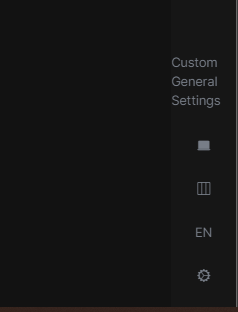
I could reproduce the problem. It seems you're using an older version of General Settings component content with abp 6.0.
Can you try updating your MyGeneralSettings.razor file content as following:
@using Microsoft.Extensions.Localization
@using Volo.Abp.AspNetCore.Components.Web.LeptonXTheme.Navigation
@using Volo.Abp.LeptonX.Shared.Localization
@using System.Globalization
@using Volo.Abp.AspNetCore.Components.Web.LeptonXTheme.Components.ApplicationLayout.Common;
@inject IStringLocalizer<LeptonXResource> L
@inject ILanguagePlatformManager LanguagePlatformManager
@inherits GeneralSettings
<div class="lpx-settings" id="lpx-settings">
  <p>
    @Name
  </p>
  @if (HasMultipleStyles)
  {
  <div id="appearance" class="setting-icon" data-lpx-setting-icon="appearance"
    data-lpx-setting-id="settings-context-menu">
    <div class="setting">
      <i class="bi bi-laptop-fill"></i>
    </div>
  </div>
  }
  @if (HasContainerWidth)
  {
  <div id="containerWidth" class="setting-icon" data-lpx-setting-icon="containerWidth"
    data-lpx-setting-id="settings-context-menu">
    <div class="setting">
      <i class="bi bi-layout-three-columns"></i>
    </div>
  </div>
  }
  <div id="language" class="setting-icon" data-lpx-setting-icon="language"
    data-lpx-setting-id="settings-context-menu">
    <div class="setting">
      @CurrentLanguageTwoLetters
    </div>
  </div>
  <div class="setting-icon">
    <i class="bi bi-gear-wide-connected" aria-hidden="true" data-lpx-ctx-toggle="settings-context-menu"></i>
  </div>
  <div class="lpx-context-menu" data-lpx-context-menu="settings-context-menu">
    <ul class="lpx-nav-menu" id="settings-routes">
      <li class="outer-menu-item">
        <a class="lpx-menu-item-link lpx-menu-item">
        <span class="lpx-menu-item-icon">
        <i class="lpx-icon outer-icon bi bi-gear-wide-connected" aria-hidden="true"></i>
        </span>
        <span class="lpx-menu-item-text">@L["GeneralSettings"]</span>
        <span data-lpx-close="settings-context-menu">
        <i class="lpx-icon bi bi-x outer-icon dd-icon" aria-hidden="true"></i>
        </span>
        </a>
      </li>
      @if (HasMultipleStyles)
      {
      <li class="outer-menu-item">
        <a class="lpx-menu-item-link lpx-menu-item" data-lpx-setting-group="appearance">
        <span class="lpx-menu-item-icon">
        <i class="lpx-icon bi bi-palette-fill" aria-hidden="true"></i>
        </span>
        <span class="lpx-menu-item-text hidden-in-hover-trigger">@L["Appearance"]</span>
        <i class="dd-icon hidden-in-hover-trigger lpx-caret bi-chevron-down" aria-hidden="true"></i>
        </a>
        <ul class="lpx-inner-menu hidden-in-hover-trigger collapsed" data-id="appearance">
          @foreach (var style in ThemeOptions.Value.Styles)
          {
          <li class="lpx-inner-menu-item">
            <a class="lpx-menu-item-link lpx-menu-item" data-lpx-setting="@style.Key">
            <span class="lpx-menu-item-icon">
            <i class="lpx-icon @style.Value.Icon" aria-hidden="true"></i>
            </span>
            <span class="lpx-menu-item-text hidden-in-hover-trigger">@L["Theme:" + style.Key]</span>
            </a>
          </li>
          }
        </ul>
      </li>
      }
      @if (HasContainerWidth)
      {
      <li class="outer-menu-item">
        <a class="lpx-menu-item-link lpx-menu-item" data-lpx-setting-group="containerWidth">
        <span class="lpx-menu-item-icon">
        <i class="lpx-icon bi bi-aspect-ratio" aria-hidden="true"></i>
        </span>
        <span class="lpx-menu-item-text hidden-in-hover-trigger">@L["ContainerWidth"]</span>
        <i class="dd-icon hidden-in-hover-trigger lpx-caret bi-chevron-down" aria-hidden="true"></i>
        </a>
        <ul class="lpx-inner-menu hidden-in-hover-trigger collapsed" data-id="containerWidth">
          <li class="lpx-inner-menu-item">
            <a class="lpx-menu-item-link lpx-menu-item" data-lpx-setting="boxed">
            <span class="lpx-menu-item-icon"><i class="lpx-icon bi bi-square"
              aria-hidden="true"></i></span>
            <span class="lpx-menu-item-text hidden-in-hover-trigger">@L["ContainerWidth:Boxed"]</span>
            </a>
          </li>
          <li class="lpx-inner-menu-item">
            <a class="lpx-menu-item-link lpx-menu-item selected" data-lpx-setting="full">
            <span class="lpx-menu-item-icon">
            <i class="lpx-icon bi bi-layout-three-columns" aria-hidden="true"></i>
            </span>
            <span
              class="lpx-menu-item-text hidden-in-hover-trigger">@L["ContainerWidth:FullWidth"]</span>
            </a>
          </li>
        </ul>
      </li>
      }
      <li class="outer-menu-item">
        <a class="lpx-menu-item-link lpx-menu-item" data-lpx-setting-group="language">
        <span class="lpx-menu-item-icon"><i class="lpx-icon bi bi-globe" aria-hidden="true"></i></span>
        <span class="lpx-menu-item-text hidden-in-hover-trigger">@L["Language"]</span>
        <i class="dd-icon hidden-in-hover-trigger lpx-caret bi-chevron-down" aria-hidden="true"></i>
        </a>
        <ul class="lpx-inner-menu hidden-in-hover-trigger collapsed" data-id="language">
          @if (HasLanguages)
          {
          @foreach (var language in Languages)
          {
          <li class="lpx-inner-menu-item">
            <a class="lpx-menu-item-link@(language.CultureName == CurrentLanguage.CultureName ? " selected" : string.Empty)"
            @onclick="() => LanguagePlatformManager.ChangeAsync(language)">
            <span class="lpx-menu-item-text hidden-in-hover-trigger">@language.DisplayName / @(new
            CultureInfo(language.CultureName).TwoLetterISOLanguageName.ToUpper())</span>
            </a>
          </li>
          }
          }
        </ul>
      </li>
    </ul>
  </div>
</div>
ABP Blob Storing doesn't support tenant-based configuration by default.
But you can customize AzureBlobProviderConfiguration like the following example: https://docs.abp.io/en/abp/latest/Blob-Storing-Custom-Provider#extra-configuration-options
You can resolve current tenant and return custom values according to the tenant.
Yes, you're right. The PR was made to the dev branch which will be shipped in v7.0.
So, I've picked those changes to the v6.0, it'll be included in the closest patch version (6.0.1). https://github.com/abpframework/abp/pull/14293









