




Subject: CMS Kit Pro 10.7.0 — Blazor Pages Admin resets published pages to Draft on edit
Environment
- ABP Commercial 10.7.0
- .NET 10
- CMS Kit Pro
- Blazor Web App (Admin UI)
- ASP.NET Core MVC/Razor Pages (Public Website)
- EF Core / SQL Server
Problem
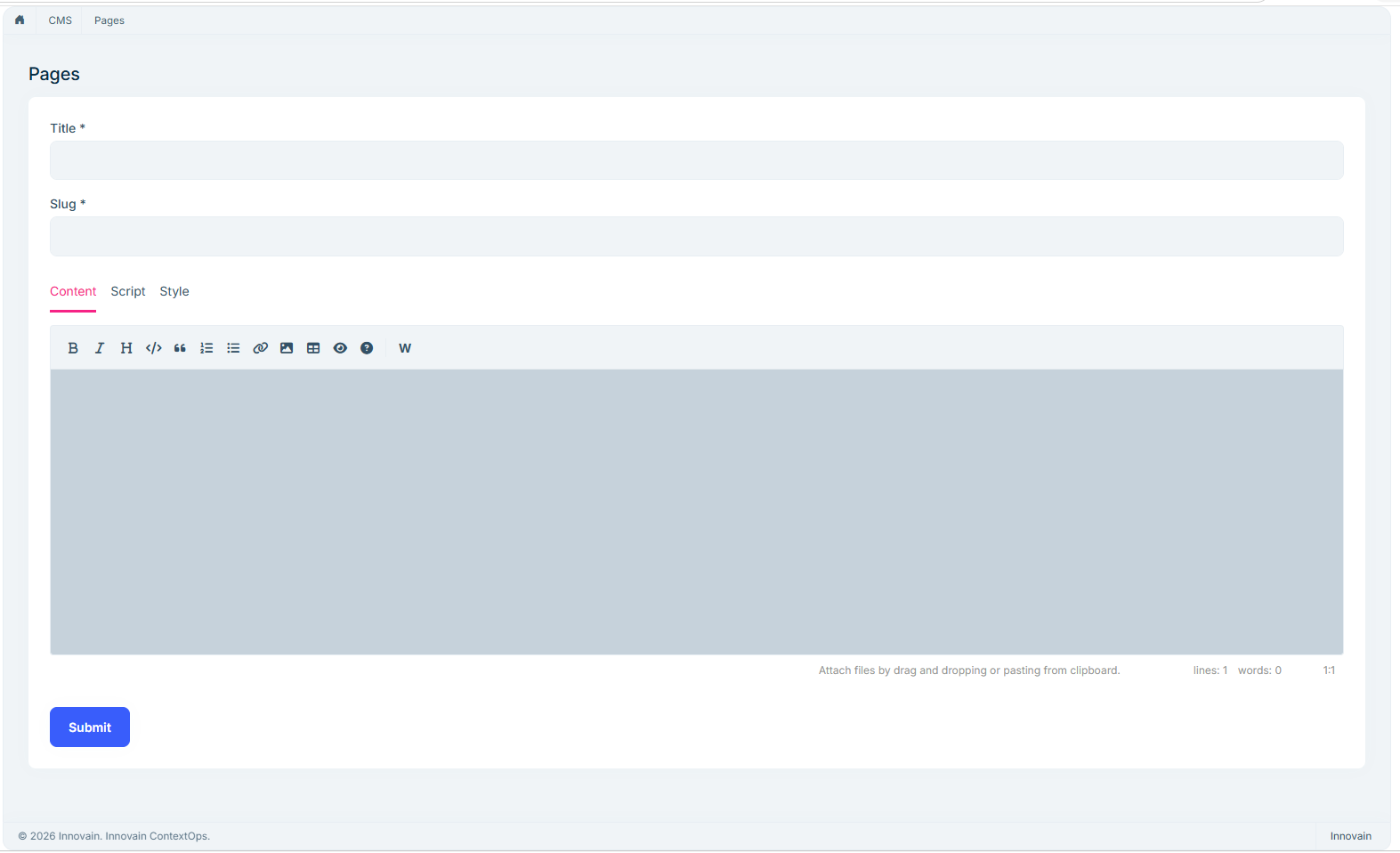
The CMS Kit Pro Blazor administration UI does not expose a page publication status selector or a Publish action.
Furthermore, editing an already published page through the Blazor administration UI causes the page to return to Draft status.
Steps to reproduce
- Create a CMS page from CMS → Pages in Blazor Client.
- Verify through
PageAdminAppServicethat the page hasstatus = 0(Draft). - Publish the page using the native
PUT /api/cms-kit-admin/page-admin/{id}API, settingstatus = 1. - Verify that the public website can retrieve and display the published page successfully.
- Edit the page content from CMS → Pages in Blazor and save.
- Observe that the page returns to Draft and becomes unavailable through the public application service.
Expected behavior
Editing a published page should preserve its published status, or the administration UI should offer an explicit editorial workflow to manage Draft and Publish states.
Actual behavior
The Blazor editor does not provide publication controls, and saving the page reverts its publication status.
Questions
- Is this a known issue in CMS Kit Pro 10.7.0?
- Is page publication officially supported in the Blazor administration UI?
- Is there an existing configuration or recommended workaround?
- Can this behavior be corrected in an upcoming patch release?
We reproduced this behavior using the native CMS Kit Pro services without custom CMS implementations.
1 Answer(s)
-
0
Hi,
This is a bug in the CMS Kit Pro Blazor admin UI. The edit page doesn't keep the page status (and the layout name) when it loads the page, so every save sends
Draftback. The MVC UI hasSave as draftandPublishbuttons, but they were never added to the Blazor UI.We'll fix this in the next patch release. For now, you can replace the page edit component.
- Add these two files to your
Blazor.Clientproject, for example underPages/Cms:
MyPageUpdate.razor@using Blazorise.Markdown @using Volo.Abp.AspNetCore.Components.Web @using Volo.Abp.AspNetCore.Components.Web.Theming.Layout @using Volo.Abp.BlazoriseUI.Components.ObjectExtending @using Volo.Abp.DependencyInjection @using Volo.CmsKit.Admin.Pages @using Volo.CmsKit.Localization @using Volo.CmsKit.Pro.Admin.Blazor.Pages.CmsKit @inherits PageUpdate @attribute [ExposeServices(typeof(PageUpdate))] @attribute [Dependency(ReplaceServices = true)] @inject AbpBlazorMessageLocalizerHelper<CmsKitResource> LocalizerHelper <PageHeader Title="@L["Pages"]" BreadcrumbItems="@BreadcrumbItems"> </PageHeader> @if (EditingPage != null) { <Card> <CardBody> <Form> <Validations @ref="@ValidationsRef" Model="@EditingPage" ValidateOnLoad="false"> <Validation MessageLocalizer="@LocalizerHelper.Localize"> <Field> <FieldLabel>@L["Title"] *</FieldLabel> <TextInput @bind-Value="EditingPage.Title" Autofocus="true"> <Feedback> <ValidationError/> </Feedback> </TextInput> </Field> </Validation> <Validation MessageLocalizer="@LocalizerHelper.Localize"> <Field> <FieldLabel>@L["Slug"] *</FieldLabel> <Tooltip Text="@L["PageSlugInformation"]"> <TextInput @bind-Value="EditingPage.Slug" Autofocus="false"> <Feedback> <ValidationError/> </Feedback> </TextInput> </Tooltip> </Field> </Validation> <ExtensionProperties TEntityType="UpdatePageInputDto" TResourceType="CmsKitResource" Entity="@EditingPage" LH="@LocalizerHelper" ModalType="ExtensionPropertyModalType.EditModal" /> </Validations> <Tabs @bind-SelectedTab="@SelectedTab" RenderMode="TabsRenderMode.LazyLoad"> <Items> <Tab Name="content">@L["Content"]</Tab> <Tab Name="script">@L["Script"]</Tab> <Tab Name="style">@L["Style"]</Tab> </Items> <Content> <TabPanel Name="content"> <DynamicWidgetMarkdown @ref="@MarkdownRef" @bind-Value="@EditingPage.Content"></DynamicWidgetMarkdown> </TabPanel> <TabPanel Name="script"> <Markdown @bind-Value="@EditingPage.Script" LineNumbers="true" HideIcons="@HideIcons" AutoDownloadFontAwesome="false" UploadImage="false"> <Toolbar> <MarkdownToolbarButton Action="MarkdownAction.Bold"/> </Toolbar> </Markdown> </TabPanel> <TabPanel Name="style"> <Markdown @bind-Value="@EditingPage.Style" LineNumbers="true" HideIcons="@HideIcons" AutoDownloadFontAwesome="false" UploadImage="false"> <Toolbar> <MarkdownToolbarButton Action="MarkdownAction.Bold"/> </Toolbar> </Markdown> </TabPanel> </Content> </Tabs> </Form> </CardBody> <CardFooter> <Button Color="Color.Primary" Outline Class="me-1" Clicked="@SaveAsDraftAsync">@L["SaveAsDraft"]</Button> <Button Color="Color.Primary" Clicked="@PublishAsync">@L["Publish"]</Button> </CardFooter> </Card> }MyPageUpdate.razor.csusing System.Threading.Tasks; using Volo.Abp.ObjectExtending; using Volo.CmsKit.Admin.Pages; using Volo.CmsKit.Pages; namespace YourProjectName.Blazor.Client.Pages.Cms; public partial class MyPageUpdate { protected override async Task GetEditingPageAsync() { var page = await PageAdminAppService.GetAsync(Id); EditingPage = new UpdatePageInputDto { ConcurrencyStamp = page.ConcurrencyStamp, Content = page.Content, Script = page.Script, Style = page.Style, Title = page.Title, Slug = page.Slug, LayoutName = page.LayoutName, Status = page.Status }; page.MapExtraPropertiesTo(EditingPage); } protected virtual async Task SaveAsDraftAsync() { EditingPage.Status = PageStatus.Draft; await UpdatePageAsync(); } protected virtual async Task PublishAsync() { EditingPage.Status = PageStatus.Publish; await UpdatePageAsync(); } }- Register it in the
ConfigureServicesmethod of your serverBlazorproject module as well. The server project doesn't scan the client module, so without this line the server side still renders the old page:
context.Services.AddTransient<Volo.CmsKit.Pro.Admin.Blazor.Pages.CmsKit.PageUpdate>(
    _ => new YourProjectName.Blazor.Client.Pages.Cms.MyPageUpdate());
After this, the edit page shows
Save as draftandPublishinstead ofSubmit. ClickPublishto save and keep the page published.Save as draftsaves it and unpublishes it. New pages are still created as draft, so create the page first, then open it and clickPublish.Thanks
Markdown supported.Copy, paste, or drag & drop images and files (max 100 MB per file, 100 MB total per post) - Add these two files to your