Hello,
When you look at the pod's container, can you see that the relevant environment variable is set? ,
Also, the problem seems to be caused by CORS, but can you disable it as mentioned in this document to clear your doubts here?
You can search for context.Services.AddCors in the solution and find where it is configured.
Hello,
Sorry for the late reply, but we missed this question because the friend dealing with the subject was on vacation. However, next Monday, the friend who is interested in the subject will return to you. Thank you for your patience.
Hello,
Sorry for the late reply, but we missed this question because the friend dealing with the subject was on vacation. However, next Monday, the friend who is interested in the subject will return to you. Thank you for your patience.
Hi,
Can you upload this sample application to drive and send the link to berkan.sasmaz@volosoft.com?
Hello,
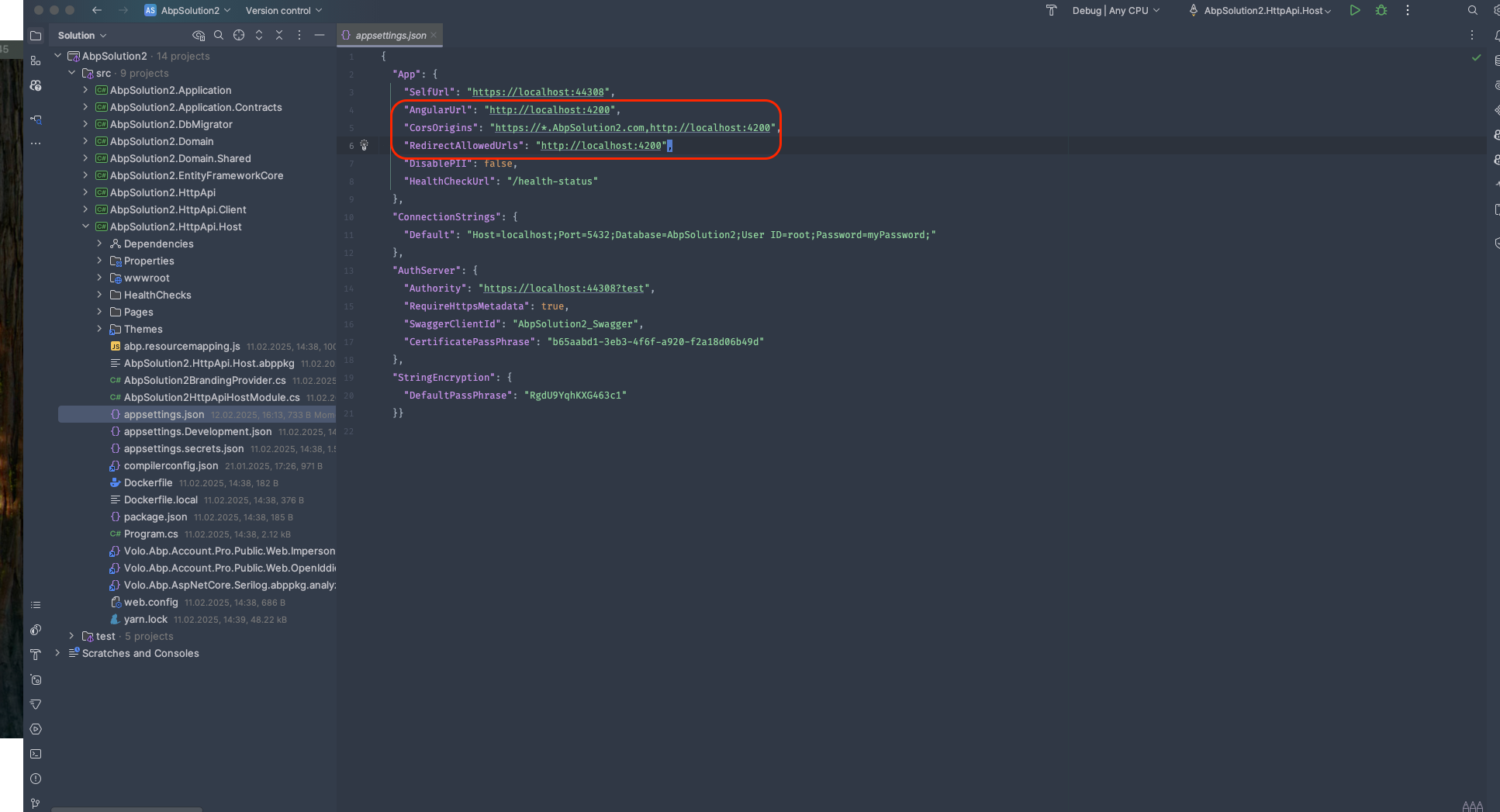
You can configure CORS and others via appsettings.json of end applications(e.g. AuthServer, HttpApiHost, etc) like below:
Hello,
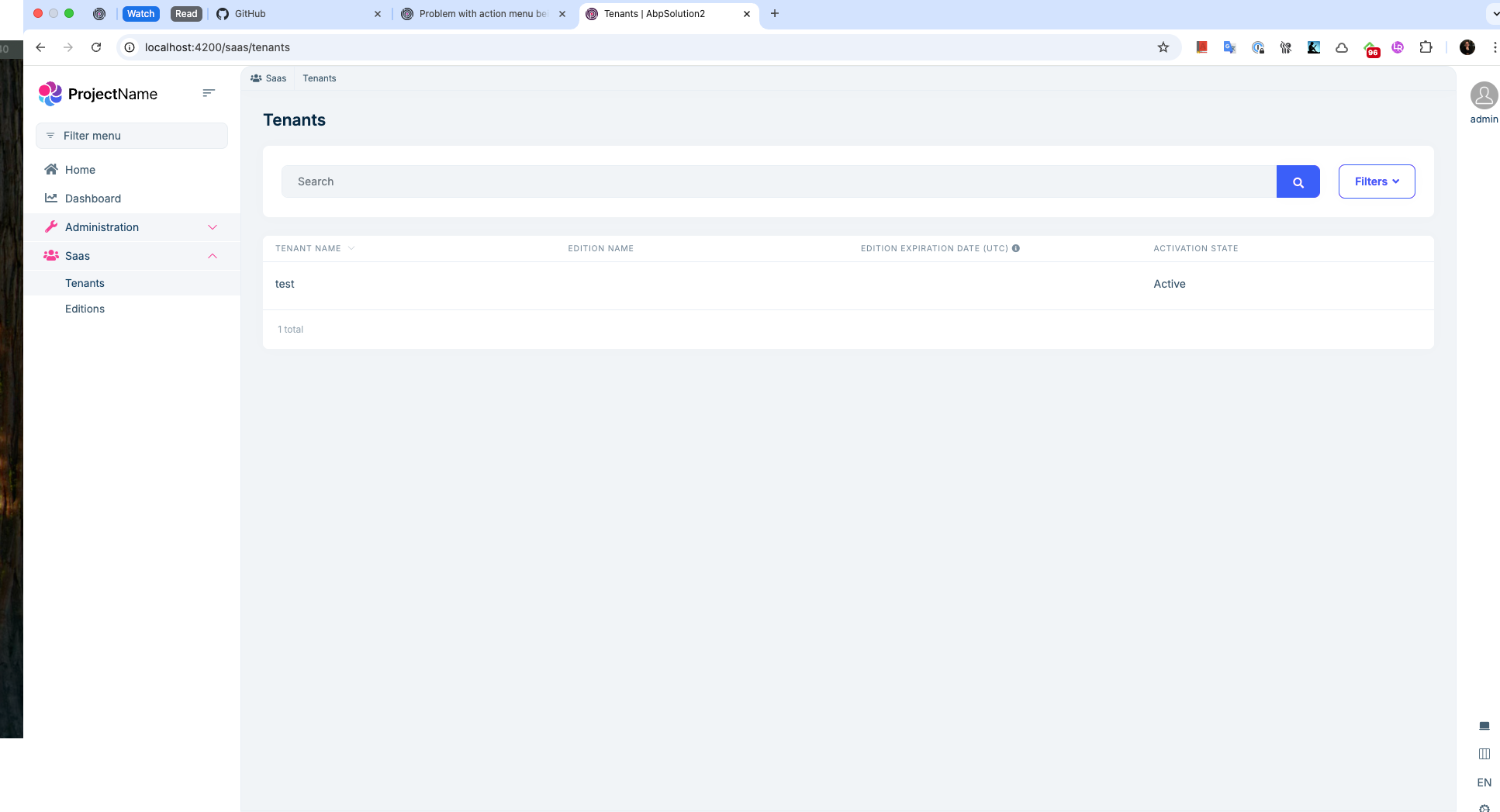
Which version does your app use? Also on which page did you test this? When I test it on the Tenants page, I get a result like below:
Hello,
Can you send the code of the component you created?
The problem may be caused by the lifecycle of Blazor Components. See more: https://learn.microsoft.com/en-us/aspnet/core/blazor/components/lifecycle?view=aspnetcore-9.0#after-component-render-onafterrenderasync
You can do this by adding the following code to the global.css file under wwwroot:
.lpx-header-top{
    padding: 0 20em;
}
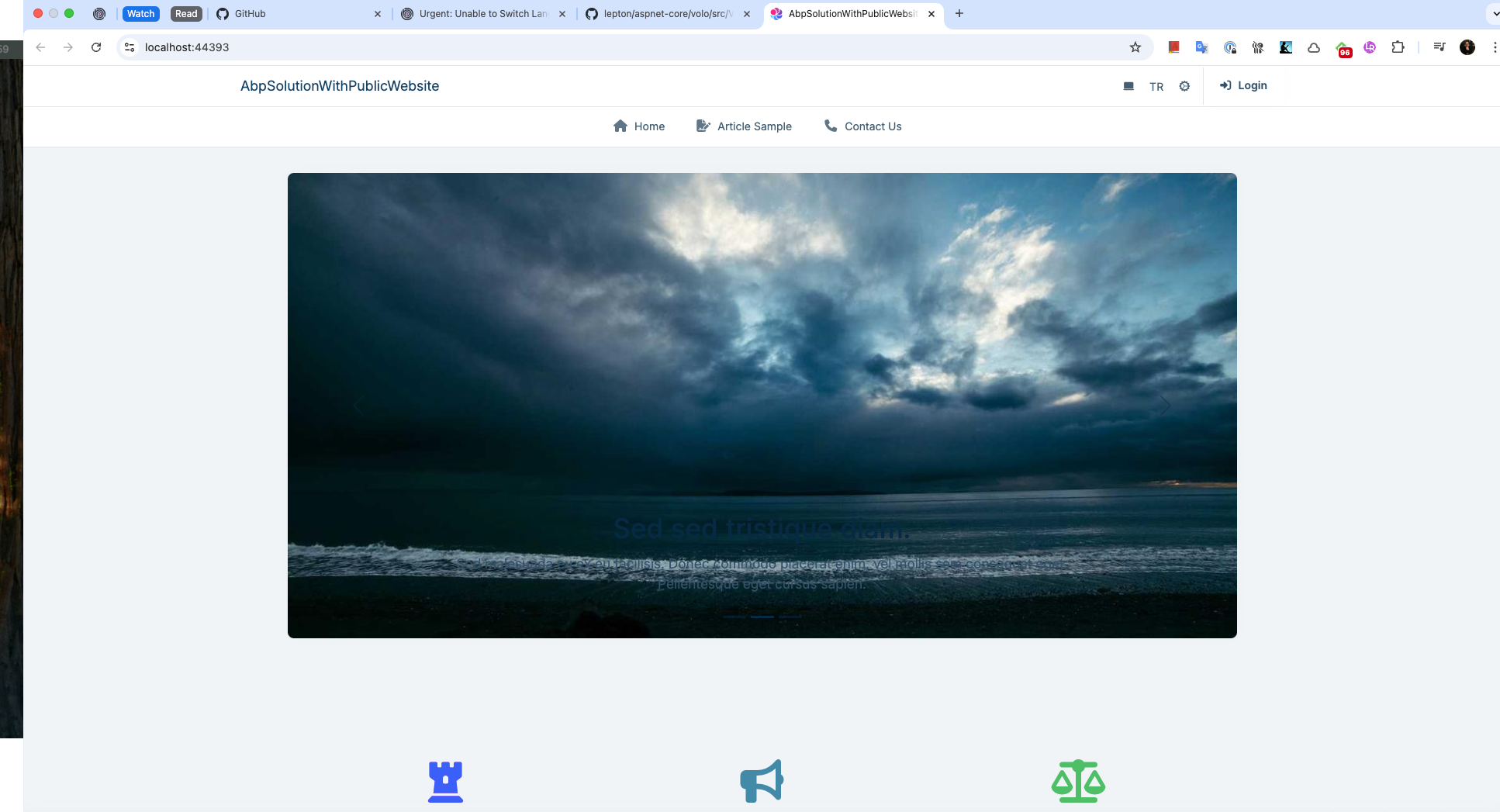
By the way, if you want, you can customize the MainHeader as follows:
Create the /Themes/LeptonX/Components/TopMenu/MainHeader/Default.cshml and update its content as follows:
@using Volo.Abp.AspNetCore.Mvc.UI.Theme.LeptonX.Themes.LeptonX.Components.Common.MainHeaderBranding
@using Volo.Abp.AspNetCore.Mvc.UI.Theme.LeptonX.Themes.LeptonX.Components.TopMenu.MainHeaderToolbar
@using Volo.Abp.AspNetCore.Mvc.UI.Theme.LeptonX.Themes.LeptonX.Components.TopMenu.MainMenu

<header>
    <div class="lpx-header-top ml-10 mr-10">
        @await Component.InvokeAsync(typeof(MainHeaderBrandingViewComponent))
        <nav class="lpx-nav me-auto">
            <ul class="lpx-nav-menu">

                @*TODO: Should we use a contributor for here?*@
                @*
            <li class="outer-menu-item" tabindex="0"><a class="lpx-menu-item-link lpx-menu-item " href="/">
               <span class="lpx-menu-item-icon"><i class="lpx-icon bi bi-house-door-fill" aria-hidden="true"></i></span>
               <span class="lpx-menu-item-text">Home</span>
               </a>
            </li>
            <li class="outer-menu-item" tabindex="0"><a class="lpx-menu-item-link lpx-menu-item ">
               <span class="lpx-menu-item-icon"><i class="lpx-icon bi bi-star-fill" aria-hidden="true"></i></span>
               <span class="lpx-menu-item-text">Favorite Pages</span>
               </a>
            </li>
        *@
            </ul>
        </nav>

        @await Component.InvokeAsync(typeof(MainHeaderToolbarViewComponent))
    </div>
    <div class="lpx-header-bottom">
        <nav class="lpx-nav">
            <ul class="lpx-nav-menu">
                @await Component.InvokeAsync(typeof(MainMenuViewComponent))
            </ul>
        </nav>
    </div>
</header>
You can now update its content as you wish.
I have reviewed all the information you have sent and at this point we are sure that the problem is not caused by the modules. So we can only focus on the Host application, Blazor WebApp. As far as I understand from the last screen recording you sent, you can't do anything until the Web Assembly side is loaded and you encounter a lot of freezes. Can you create a solution with Blazor Web App UI from scratch in ABP Studio to find the source of the problem? Then we can proceed by comparing Blazor and Blazor.Client projects of this solution with your project. Because the problem does not appear in the startup template. I suspect that somehow the interactivity setting is wrong in the layouts etc. But we should compare the UI projects to be sure.
Super, great to see the problem solved. So, I will close this question and you can create a new question whenever you want.









