

Previously ABP suggested us to follow an ABP Modular Monolith approach for our solution. We followed and made some modules. and we were reviewing it with a third party ABP developer who pointed us to this documentation
https://abp.io/docs/latest/tutorials/modular-crm?UI=MVC
From here we downloaded a sample and opened the project where it reads.
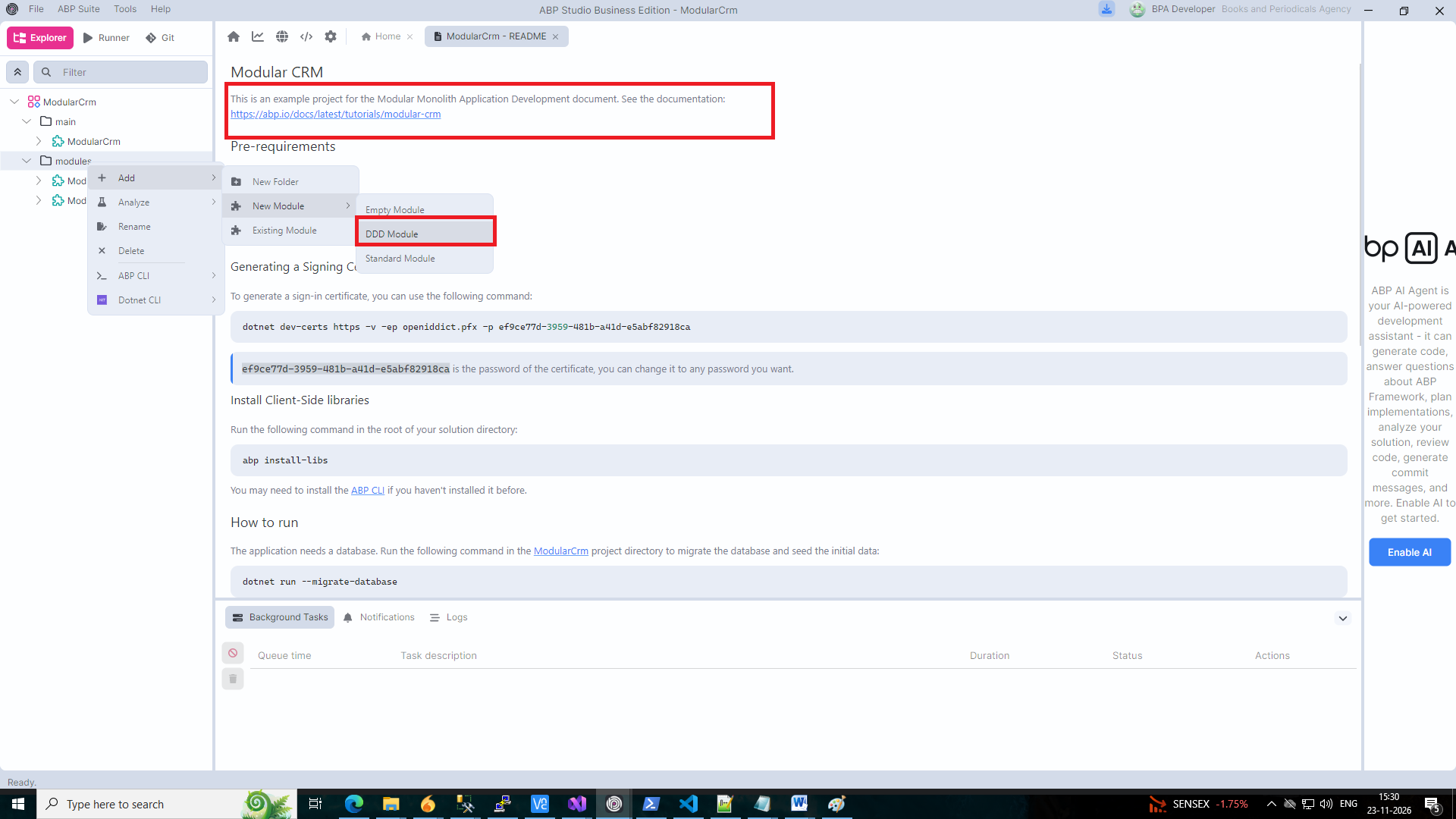
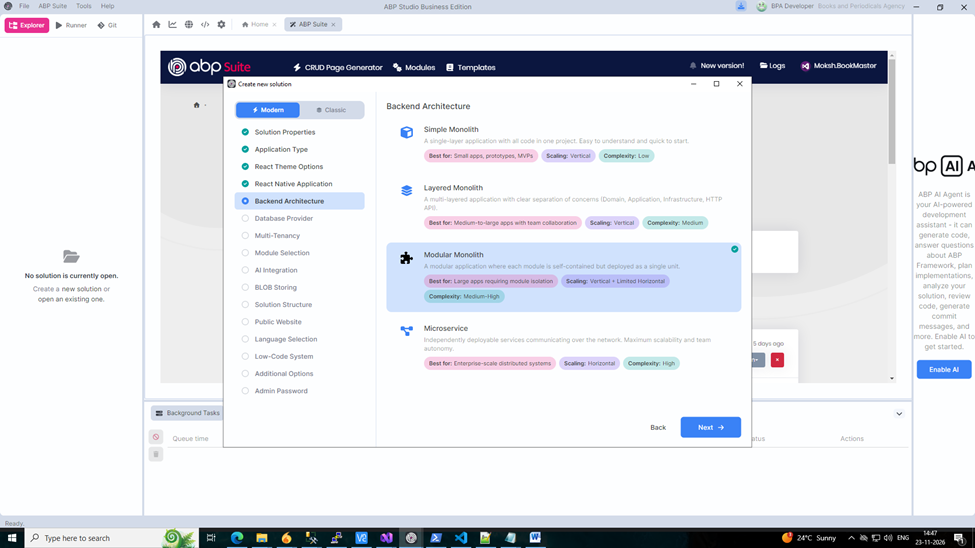
Where as when we take the screen shot from our Modular Monolith see how we created this project
 We are getting this kind of project
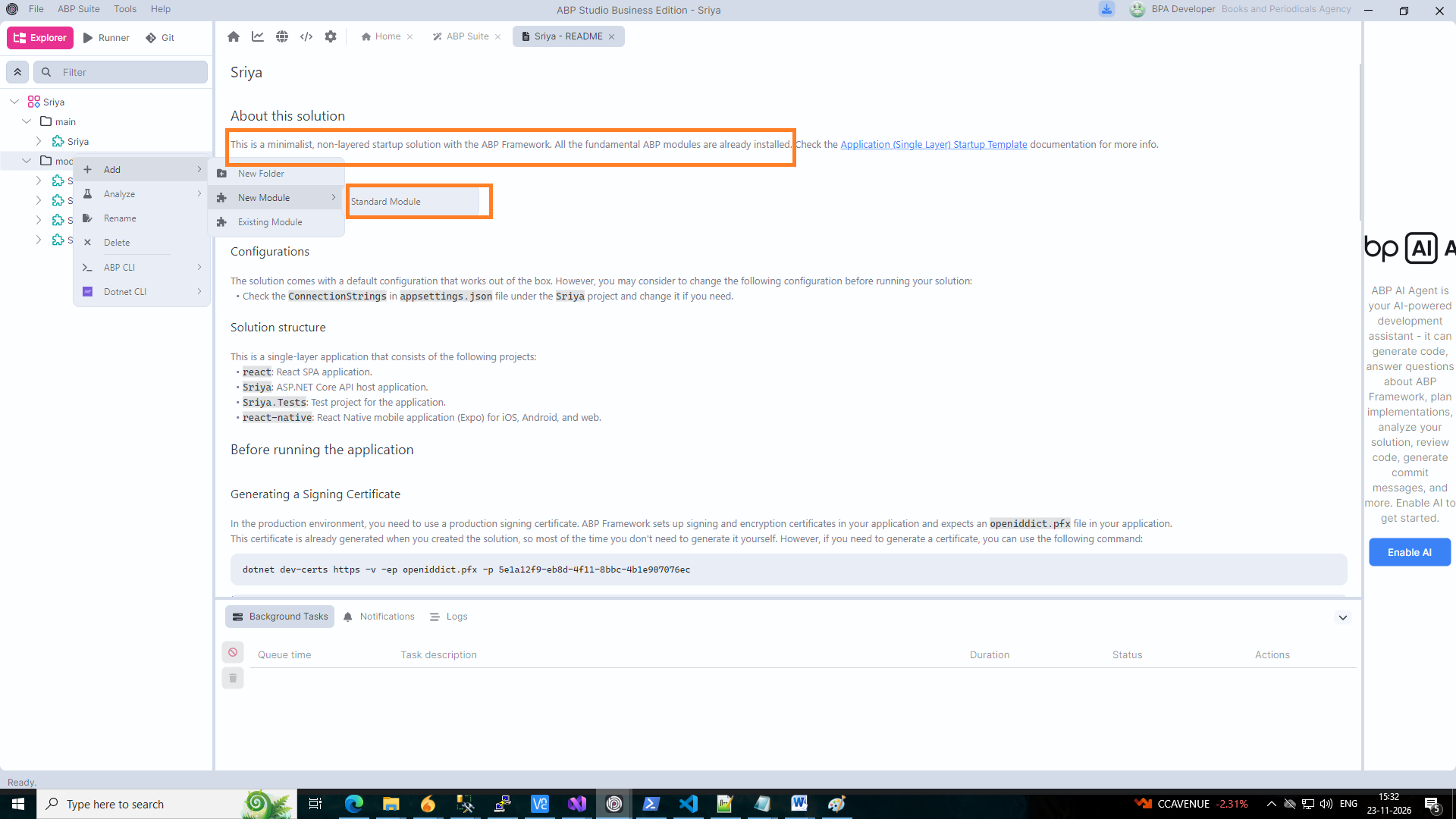
Nowhere it says Modular Monoloith and does not provides the DDDModule option.
We need a clarification on the way we can create a Modular Monolith project? what went wrong in our current project and why it is not showing as modular monolith.
How can we verifiy the type of our project. and what steps we are missing while creating a solution as shown in the sample.
Please clarify. Sriya.csproj
2 Answer(s)
-
0
- Nothing is “wrong” with ABP in your current solution; you created a Single-Layer (Startup Template) solution, not a Modular Monolith solution. ABP Studio/Suite shows different module creation options depending on the solution template type.
- In your screenshot, your solution README explicitly says it is “Application (Single Layer) Startup Template”. In that template, ABP Studio typically offers only Standard Module, and you won’t see the same modular-monolith-oriented structure/options (like the DDD Module wizard) as in the Modular CRM sample.
- The Modular CRM sample you referenced is a Modular Monolith solution, so ABP Studio provides the “modules” folder structure and allows creating a DDD Module.
How to create a Modular Monolith solution (so you get the same experience as the sample)
- In ABP Studio (New Solution wizard):
- Go to Backend Architecture
- Select Modular Monolith (as in your screenshot)
- Continue the wizard and create the solution
- After creation, in the solution explorer you should see a structure similar to the sample (commonly a
mainand amodulesfolder). - Now right-click the appropriate place (usually the solution root or
modules) and you should see:Add -> New Module -> DDD Module
How to verify what type your existing project is (practical checks)
- Check the README in ABP Studio:
If it says Single-Layer (Startup Template), it’s not the Modular Monolith solution template. - Check the solution structure:
- Modular Monolith template typically includes a clear separation like
main/andmodules/(like the Modular CRM sample). - Single-layer template is typically a minimal startup solution and doesn’t follow that modular monolith host/modules layout.
- Modular Monolith template typically includes a clear separation like
What to do with your current solution
- If you need ABP Studio’s DDD Module creation flow like the sample, the recommended approach is:
- Create a new solution using Modular Monolith, then
- Move/port your code into proper modules (or recreate modules) following that structure.
- If you want to keep your current single-layer solution, you can still design your code in a modular way, but ABP Studio will not treat it as a modular monolith template, so you should not expect the same “DDD Module” wizard options.
Sources (validated)
- https://abp.io/docs/latest/tutorials/modular-crm?UI=MVC
- https://abp.io/docs/latest/solution-templates/application-module/
This response was generated by AI. If it didn’t solve your problem, feel free to post a new answer — our support team will jump in to help you soon.
Markdown supported.Copy, paste, or drag & drop images and files (max 100 MB per file, 100 MB total per post) -
0
Hi,
The screenshots match the Modern > Modular Monolith setup. In ABP, a modular monolith is a single host application that runs your modules. Studio creates the host with the single-layer template, so the README describes the host that way. The Modular CRM sample has the same layout: a single-layer
ModularCrmhost undermainand the modules undermodules.The sample is a Classic solution. That's why its menu also shows
Empty ModuleandDDD Module. Your Modern solution only showsStandard Modulethere. The tutorial usesStandard Modulefor both Catalog and Ordering, so you can keep your current solution and modules.The
Sriya.csprojyou attached has no project references to your modules. To check, expandmain>Sriya>Imports. If you right-click an installed module there, you seeModify Installation. For each module that isn't installed yet:- Stop the app if it's running.
- If the module is listed under
Imports, right-click it and selectInstall. If it's not listed, right-clickSriya, selectImport Module, select the module and checkInstall this module. - In the
Install Moduledialog, click each package on the left and make sureSriyais checked in the middle area. If nothing is checked, clicking OK doesn't install anything. - Right-click
Sriyaand selectDotnet CLI>Graph Build.
You can see the same flow in the tutorial: https://abp.io/docs/latest/tutorials/modular-crm/part-02?UI=MVC
Thanks
Markdown supported.Copy, paste, or drag & drop images and files (max 100 MB per file, 100 MB total per post)