




- ABP Framework version: 6.0.0-rc.4 (commercial)
- UI type: MVC
- DB provider: EF Core Mysql
- Tiered (MVC) or Identity Server Separated (Angular): no
Hi,
Im trying to change the leptonx logo in order to put our own one. I cant find any docs about this (i do find for lepton, but not for leptonx) nor find where in the code it should be done?
Also, i think it would be worth cleaning the project template when you select LeptonX as there is still stuff that seems to be for Lepton only such as :
- logo-dark.png and logo-light.png in the images folder of the wwwroot. This seems to be the logo used in Lepton
- This section of the appsettings in the web project
    "Settings": {
    "Volo.Abp.LeptonTheme.Style": "Style1", /* Options: Style1, Style2... Style6 */
    "Volo.Abp.LeptonTheme.Layout.MenuPlacement": "Top", /* Options: Left, Top */
    "Volo.Abp.LeptonTheme.Layout.MenuStatus": "AlwaysOpened", /* Options: AlwaysOpened, OpenOnHover */
    "Volo.Abp.LeptonTheme.Layout.Boxed": "False" /* Options: True, False */
  }
10 Answer(s)
-
0
Hi,
Also, i think it would be worth cleaning the project template when you select LeptonX as there is still stuff that seems to be for Lepton only such as :
- We've removed lepton-related lines/files and it'll be available within the next release.
Im trying to change the leptonx logo in order to put our own one. I cant find any docs about this (i do find for lepton, but not for leptonx) nor find where in the code it should be done?
- We'll update LeptonX documentation and add customization sections.
To change the logos you can use the following code block in your CSS file (global-styles.css):
/* for dim and dark theme styles */
:root .lpx-theme-dim, :root .lpx-theme-dark {
    --lpx-logo: url('/images/logo/logo-light.png');
    --lpx-logo-icon: url('/images/logo/logo-light-thumbnail.png');
}

/* for light theme style */
:root .lpx-theme-light, :root .lpx-brand-logo {
    --lpx-logo: url('/images/logo/logo-dark.png');
    --lpx-logo-icon: url('/images/logo/logo-dark-thumbnail.png');
}
Markdown supported.Copy, paste, or drag & drop images and files (max 100 MB per file, 100 MB total per post) -
0
Thank you, it does work.
Also, there aint no doc either for those 2 other customization that probably everyone needs:
- The *.web favicon
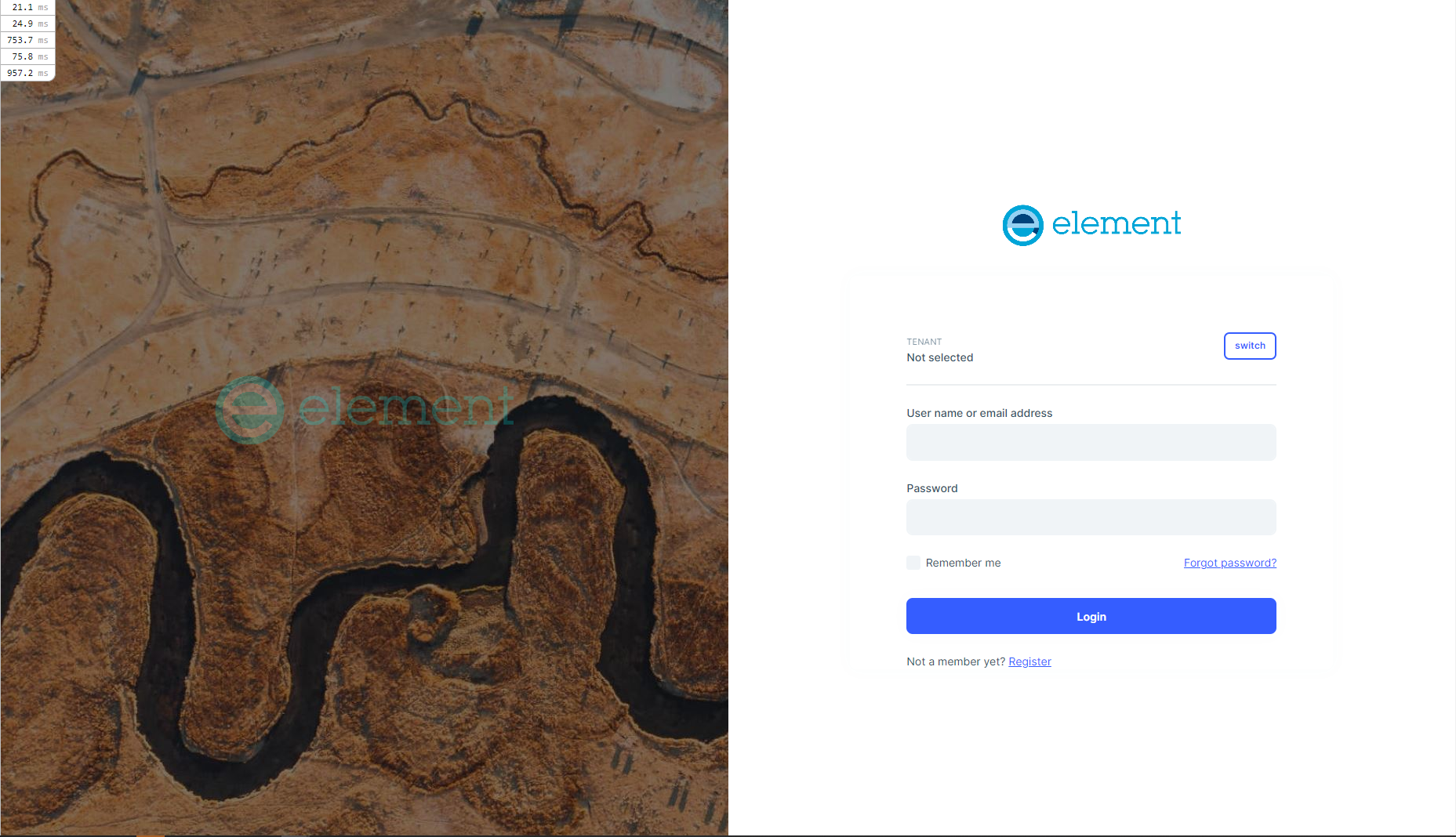
- The picture of the login page
Thank you
Markdown supported.Copy, paste, or drag & drop images and files (max 100 MB per file, 100 MB total per post) -
0
Thank you, it does work.
Also, there aint no doc either for those 2 other customization that probably everyone needs:
- The *.web favicon
- The picture of the login page
Thank you
We are preparing the customization documentations for LeptonX Theme and they'll be available soon.
Favicon:
- You can add a favicon to the
~/images/favicon/logo-favicon_1.svgpath to override the current favicon. (We have an open issue about this problem and we'll improve and make it easier to customize)
The picture of the login page:
Please see, https://support.abp.io/QA/Questions/3653/LeptonX-Theme-and-Login-Form#answer-feab7ac5-5e50-0cfb-3e8a-3a0623adb4d9
Markdown supported.Copy, paste, or drag & drop images and files (max 100 MB per file, 100 MB total per post) -
0
Thanks, so far the favicon and logo is working.
On my BrandingProvider tough, i only have those properties
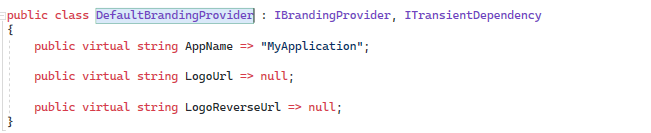 and the logo url actually is working (so it seems we dont have to override the css ;)).
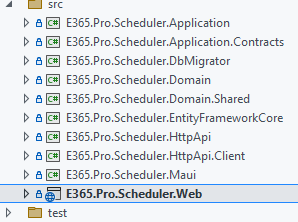
Please note that i am using the not tiered version
Thank you
Markdown supported.Copy, paste, or drag & drop images and files (max 100 MB per file, 100 MB total per post) -
0
and the logo url actually is working (so it seems we dont have to override the css ;)).
Yes, you don't have to override CSS. You can also specify the logo URL from the branding provider. Both options are valid and can be used.
Markdown supported.Copy, paste, or drag & drop images and files (max 100 MB per file, 100 MB total per post) -
0
Do you know then how we can change the picture on the login screen?
Thank you
Hi, you can add an image to the /Themes/LeptonX/Global/assets/img/login-bg.jpg path. When you do that, your image will be used in the background on the login screen.
There is a watermark in the background image, so you might remove that. To do that:
.lpx-brand-logo.lpx-login-big-logo {
    display: none;
}
Markdown supported.Copy, paste, or drag & drop images and files (max 100 MB per file, 100 MB total per post) -
0
I changed the image and had problems with the size and alignment. Now I have set the following CSS styles and so the image is set as background for this column. This way it looks great even with different screen sizes.
.lpx-login-image-area img {
    display: none;
}

.lpx-login-image-area {
    background-image: url("/Themes/LeptonX/Global/assets/img/login-bg.jpg");
    background-position: right;
    background-repeat: no-repeat;
    background-size: cover;
}
Markdown supported.Copy, paste, or drag & drop images and files (max 100 MB per file, 100 MB total per post) -
0
I changed the image and had problems with the size and alignment. Now I have set the following CSS styles and so the image is set as background for this column. This way it looks great even with different screen sizes.
.lpx-login-image-area img {
    display: none;
}

.lpx-login-image-area {
    background-image: url("/Themes/LeptonX/Global/assets/img/login-bg.jpg");
    background-position: right;
    background-repeat: no-repeat;
    background-size: cover;
}
Thanks for reporting this, I'll discuss this with the team and we'll try to improve the customization of the background image of the login page.
Best Regards.
Markdown supported.Copy, paste, or drag & drop images and files (max 100 MB per file, 100 MB total per post)