Once you set any feature for tenant, that is accepted and Edition features doesn't affect anymore.
So we decided to make a development for that experience.
https://github.com/abpframework/abp/issues/14470
We reproduced the issue. Currently leptonx.bunlde.js doesn't allow removing an item from generalsettings. It can't be initialized when a general setting item is removed.
We'll change this behavior and it'll be included in LeptonX 1.1
PageLayout feature might help in your situation. https://docs.abp.io/en/abp/latest/UI/Blazor/Page-Layout
PageLayout [Inject]
public PageLayout PageLayout { get; set; }
MenuItemName as "none" and set it back empty after page is disposed.protected async override Task OnInitializedAsync()
{
PageLayout.MenuItemName = "None";
}
protected override void Dispose(bool disposing)
{
PageLayout.MenuItemName = string.Empty;
base.Dispose(disposing);
}
Firstly, which Theme are you currently using? Lepton, LeptonX, Basic
Which version are you currently using? 6.0.0, 5.3.5 etc.
Which UI type? Angular, MVC, Blazor Server, Blazor Wasm
afterLeptonXInitialization
For afterLeptonXInitialization issue, it seems the leptonx javascript bundle is old. afterLeptonXInitialization logic was included in LeptonX v1.0.0. Make sure your LeptonX dependencies are equal or above 1.0.0 in .csproj and package.json files.
Then run following command for MVC and Blazor-Server projects.
abp install-libs
If your project is Blazor WASM, try following one
abp bundle
AbpComponentBase provides HandleErrorAsync() method to handle exceptions in Blazor Server. It does everything for you, it writes logs, show modal etc.
You can use it like that:
    try
    {
        // Your logic here.
        throw new Exception("Test"); // Example exception.
    }
    catch (Exception ex)
    {
        await HandleErrorAsync(ex);
    }
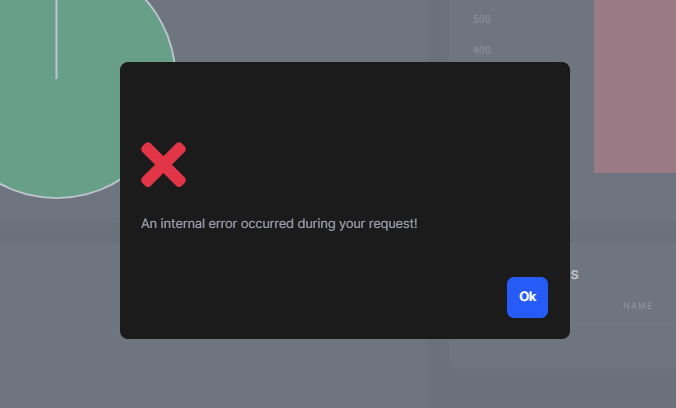
Also UserFriendlyException is handled:
    try
    {
        // Your logic here.
        throw new UserFriendlyException("This is a user friendly exception.");
    }
    catch (Exception ex)
    {
        await HandleErrorAsync(ex);
    }
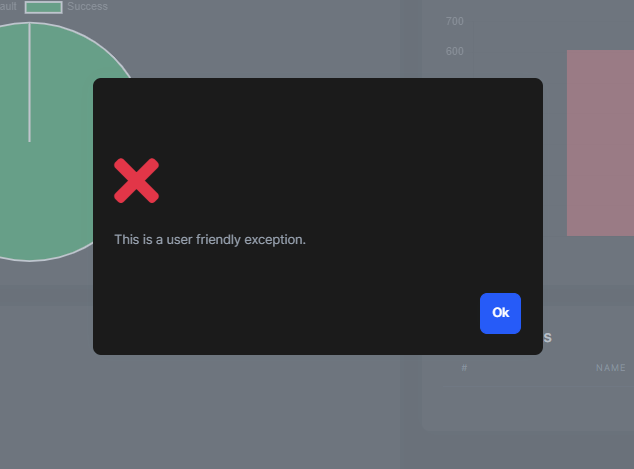
You can check this out for more information: https://docs.abp.io/en/abp/latest/UI/Blazor/Error-Handling?UI=BlazorServer#blazor-ui-error-handling
This is a Blazorise limitation. There is no event or async callback for selection change.
But you can still use your async operation with Task.Run() as a workaround.
public partial class Index
{
    private Guid selectedIndexItemId;
    public Guid SelectedIndexItemId
    {
        get => selectedIndexItemId;
        set {
            selectedIndexItemId = value;
            Task.Run(OnDropdownSelected); // 👈
        }
    }

    public async Task OnDropdownSelected() // 👈
    {
        await Task.Delay(1000);
        Logger.LogInformation("OnDropdownSelected!");
    }
}
I had the latest stable version. I am not understanding you on the whole abp 6.0 stable vs LeptonX. They were both 6.0 stable versions. The entire point for me of creating the custom side general settings is to remove the language platform. I do not want to show it.
ABP and LeptonX have different versioning systems. LeptonX version 1.0.0` was released just after ABP 6.0.0.
You can use this template to override generalsettings: https://support.abp.io/QA/Questions/3831#answer-9a59a509-4790-32ce-046b-3a06dcd3ed1b
You can use SelectedValueChanged event and manage current selected item manually instead of using binding.
Or,
You can just use a regular encapsulation over your property. You can use setter of the selectedDropValueSPO property.
I have an example for that:
Index.razor
<Card>
    <CardBody>
        <DropdownList @ref="dropdownRef"
            TItem="IndexItem" TValue="Guid"
            Data="IndexItems"
            @bind-SelectedValue="SelectedIndexItemId"
            TextField="@((item)=>item.Name)"
            ValueField="@((item)=>item.Id)"
            >Select Credential</DropdownList>
    </CardBody>
    <CardFooter>
        <p>
            @SelectedIndexItemId
        </p>
    </CardFooter>
</Card>
Index.razor.cs
public partial class Index
{
    protected DropdownList<IndexItem, Guid> dropdownRef;
    private Guid selectedIndexItemId;

    public List<IndexItem> IndexItems { get; set; } = new List<IndexItem>
    {
        new IndexItem(Guid.NewGuid(), "Item 1"),
        new IndexItem(Guid.NewGuid(), "Item 2"),
        new IndexItem(Guid.NewGuid(), "Item 3"),
        new IndexItem(Guid.NewGuid(), "Item 4"),
        new IndexItem(Guid.NewGuid(), "Item 5"),
    };

    public Guid SelectedIndexItemId
    {
        get => selectedIndexItemId;
        set {
            selectedIndexItemId = value;
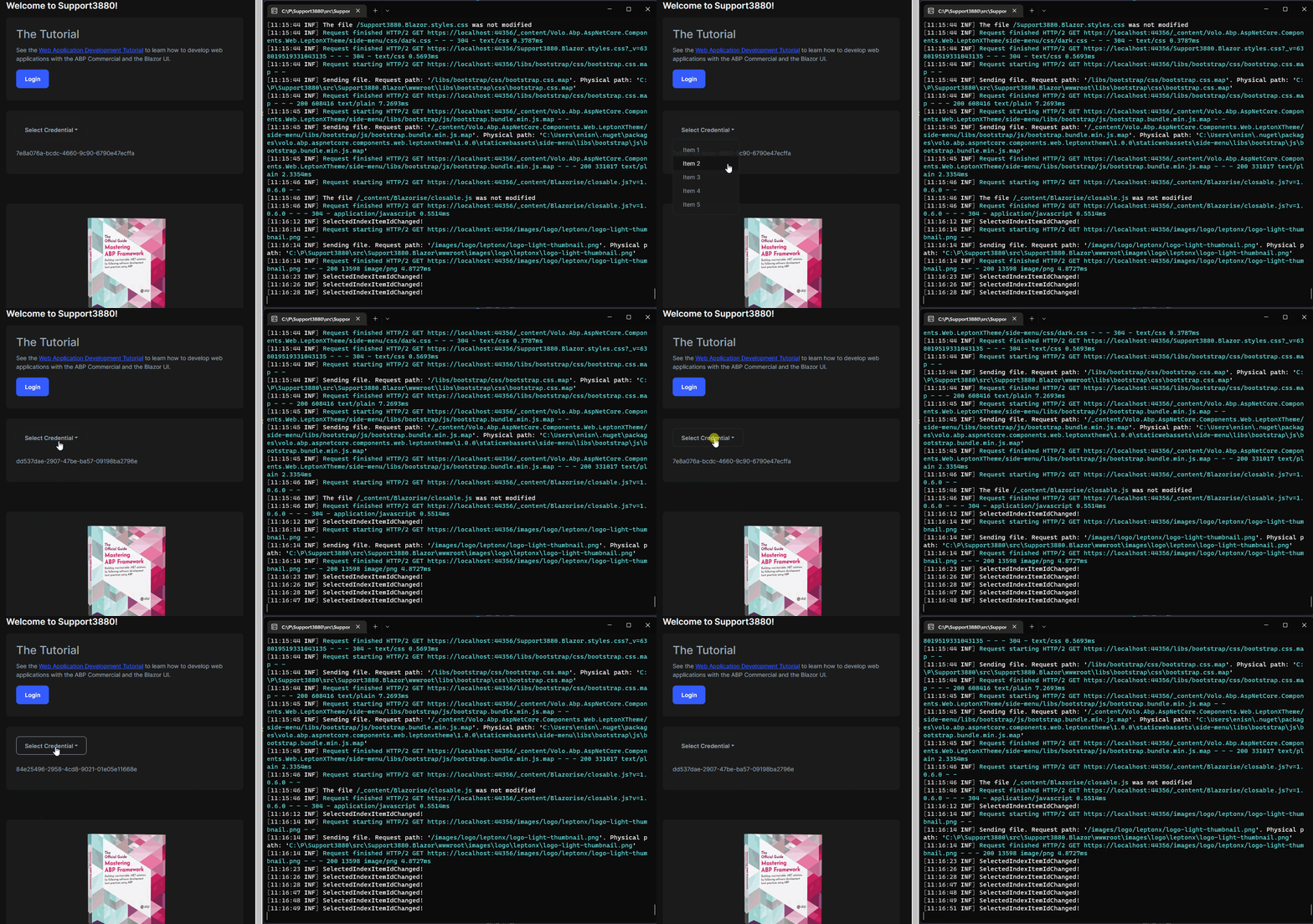
            Logger.LogInformation("SelectedIndexItemIdChanged!");
        }
    }
}
And the result is:
Can you try following configuration according to your situation?
https://support.abp.io/QA/Questions/3327/#answer-4ca736a0-24be-8f01-e071-3a04dad4fb30









