Activities of "AI-Bot"

  • This is not an ABP Framework / AuthServer (OpenIddict) license issue. An ABP commercial license expiring does not make your *.AuthServer or *.HttpApi.Host process exit with a special code.
  • In ABP Studio, “exited with code: -42” is a pattern typically seen when the process is killed externally (security software / endpoint protection / corporate policy), not when the app throws an exception. That also explains why you don’t see any .NET exception/stack trace in the output and why it suddenly started for multiple colleagues at the same time.

Do this to fix it (works in corporate environments)

  1. Run the AuthServer outside ABP Studio to see the real termination reason
    • Open a terminal in the AuthServer folder and run:
dotnet run --project .\src\TVRS.AuthServer\TVRS.AuthServer.csproj
  • If it still exits with -42 without a .NET stack trace, it’s being terminated by something external (AV/EDR/policy).
  1. Whitelist ABP/Studio network endpoints in your security software

    • If your company uses Kaspersky/Defender/EDR, ensure abp.io and subdomains are allowed (this is a known class of issues with ABP Studio/network communication, and it can indirectly break the “run” experience):
      • *.abp.io (covers account.abp.io, nuget.abp.io, etc.)
  2. Verify ABP account endpoint is reachable from the .NET runtime (not just browser)

    • Run:
[System.Net.Http.HttpClient]::new().GetStringAsync('https://account.abp.io/.well-known/openid-configuration').Result
  • If this fails while the browser works, it’s almost always proxy/SSL inspection/AV interference.
  1. If you need an official/support action (license/account side)
    • Since you already paid and the production license is active, but you’re blocked, the fastest way is to open a ticket with logs and your company security context here:
      • https://abp.io/contact

(Background case that matches your symptoms: corporate security blocking ABP Studio’s network communication / endpoints: https://abp.io/support/questions/10523 )


This response was generated by AI. If it didn’t solve your problem, feel free to post a new answer — our support team will jump in to help you soon.

  • In ABP 8.3.3, there isn’t a built-in “intercept the call to ActiveDirectory” hook in the login pipeline for on-prem Windows AD / LDAP the same way there is for OIDC/OAuth external providers. The “AD server in settings” you mentioned is not enough by itself to make ABP automatically authenticate against AD and auto-provision users.
  • The supported/ABP-native place to plug in “authenticate elsewhere, then create/sign-in an ABP user” is the External Login pipeline (i.e., treat AD as an external identity provider). In practice for on-prem AD, you typically implement your own authentication handler/provider (LDAP bind / Kerberos / etc.), then sign in using ABP Identity by creating/finding an IdentityUser and issuing the normal ABP auth cookie/token.

What to do (ABP 8.3.3, MVC, tiered)

  1. Do AD authentication in the Auth Server (or IdentityServer/OpenIddict host)

    • In a tiered solution, the “login happens” in the AuthServer/IdentityServer app (depending on your template/version).
    • Put your AD credential validation in the login flow there (e.g., custom login page model / custom action that validates username+password against AD).
  2. After AD says “OK”, create or find the ABP user and sign in

    • The “where to after this?” part is: create/find IdentityUser and sign in via ASP.NET Core Identity (so ABP can do permissions/auditing/tenancy/etc.).
    • Conceptually:
      • Look up user in ABP by username/email.
      • If not found, create it (and set email/name fields from AD if you have them).
      • Optionally add an external login record (provider name like "LDAP" and provider key like AD’s GUID/UPN) if you want it tracked like an external provider.
      • Then call the normal sign-in manager to issue the auth cookie / token.
  3. Do NOT expect “Register” to create AD accounts

    • ABP’s register page creates users in the ABP database/Identity store, not in AD.
    • If you need “registration” to mean “create in AD”, that is a separate provisioning process (and usually not allowed in many enterprises). You’d have to customize registration to call your AD provisioning logic.
  4. If you want automatic user creation on first login

    • Use the same logic in the login callback (after AD validation) to create the ABP IdentityUser record the first time that AD user signs in.

Verified references (closest applicable ABP guidance)

  • ABP account module overview (login/registration are ABP Identity-based): https://abp.io/docs/latest/modules/account
  • ABP’s general statement about authentication capabilities (mentions AD/LDAP as an integration scenario, but not a built-in “hook point” API): https://abp.io/docs/latest/others/why-abp-platform

This response was generated by AI. If it didn’t solve your problem, feel free to post a new answer — our support team will jump in to help you soon.

  • ABP 10.1.1 (including ABP Commercial/Pro Blazor modules) is not compatible with Blazorise 2.x.
    Your exception is the expected runtime failure mode when you force Blazorise 2.x into an ABP version whose UI modules were built against Blazorise 1.8.x APIs (e.g., Blazorise.TextEdit was changed/removed in v2, so ABP Pro components compiled against v1 types will fail at runtime with Could not load type ...).

  • Fast resolution (recommended for ABP 10.1.1):

    1. Downgrade Blazorise packages back to the Blazorise 1.8.x line (keep versions aligned across all Blazorise-* packages: Blazorise, Blazorise.Bootstrap5, Blazorise.Icons.*, Blazorise.Components, etc.).
    2. Remove any explicit 2.0.2 references so ABP’s transitive dependencies are not overridden by your project.
    3. Clean/rebuild (and if you use ABP CLI, run abp clean) to ensure old assemblies aren’t lingering.
  • When is Blazorise 2.x supported?

    • ABP upgrades Blazorise to 2.0 starting with ABP 10.2. So the correct path to use Blazorise 2.x with ABP Pro modules is to upgrade your whole solution (and all ABP Commercial packages) to ABP 10.2+, then follow the Blazorise 2.0 migration steps.
  • Timeline

    • The only verified info available is that Blazorise 2.0 support is delivered in ABP 10.2. No verified statement is available in the provided sources for a more specific “timeline” beyond that.

Links (verified):

  • https://abp.io/community/articles/05zatjfq (ABP 10.2 RC release notes: “Blazor: Upgrade to Blazorise 2.0”)
  • https://abp.io/docs/10.2/release-info/migration-guides/blazorise-2-0-migration

This response was generated by AI. If it didn’t solve your problem, feel free to post a new answer — our support team will jump in to help you soon.

  • Your screenshot shows the standard ABP “Blazor WebAssembly” layered solution (non-tiered) with these key projects:

    • Properly.HttpApi.Host = the actual backend host (auth + API + OpenIddict endpoints)
    • Properly.Blazor.Client = the real Blazor WASM app (static files compiled to wwwroot)
    • Properly.Blazor = the host/entry project for the WASM client (commonly used to serve the WASM; you deploy this instead of deploying the .Client project)
    • Properly.Web.Public = optional public website (separate web app)
  • Deployment blueprint that matches this structure on Azure App Service

    1. Deploy Properly.HttpApi.Host to an Azure Web App (API)

      • Set App Service settings:
        • ConnectionStrings__Default (Azure SQL)
        • App__SelfUrl = https://<api-app>.azurewebsites.net
        • AuthServer__Authority = https://<api-app>.azurewebsites.net
        • App__CorsOrigins must include your Blazor site URL (see step 3)
      • Run Properly.DbMigrator against Azure SQL once (so OpenIddict clients/redirect URIs are seeded correctly).
    2. Deploy Properly.Blazor (NOT Properly.Blazor.Client) to an Azure Web App (UI)

      • The .Client project alone is just static WASM output; the ABP template expects the Properly.Blazor host project for serving it in the default setup.
    3. Make sure URLs are consistent (most common cause of “loads forever”) In Properly.Blazor/wwwroot/appsettings.json (or its environment-specific variant you deploy), set:

      • App:SelfUrl = https://<blazor-app>.azurewebsites.net
      • AuthServer:Authority = https://<api-app>.azurewebsites.net
      • RemoteServices:Default:BaseUrl = https://<api-app>.azurewebsites.net

      In Properly.HttpApi.Host configuration, ensure:

      • App:CorsOrigins includes https://<blazor-app>.azurewebsites.net
      • App:RedirectAllowedUrls includes https://<blazor-app>.azurewebsites.net
  • Alternative (simplest operationally): host WASM inside HttpApi.Host and deploy only one App Service If you want one Azure Web App only, follow the “Blazor WebAssembly ASP.NET Core Hosted” approach (ABP community guide). This makes HttpApi.Host serve the WASM files too:

    • Add app.UseBlazorFrameworkFiles() before static files
    • Add MapFallbackToFile("index.html")
    • Point Blazor settings (SelfUrl, Authority, BaseUrl) to the same host URL

    (This approach is explicitly documented in the ABP community article below.)

  • Links (verified reachable)

    • https://abp.io/docs/10.1/solution-templates/layered-web-application/deployment/azure-deployment/step1-create-azure-resources
    • https://abp.io/docs/10.1/solution-templates/layered-web-application/deployment/azure-deployment/step2-configuration-application
    • https://abp.io/community/articles/zbjvgrc9

This response was generated by AI. If it didn’t solve your problem, feel free to post a new answer — our support team will jump in to help you soon.

  • Deploy ABP Blazor WASM (v10.1.0) to Azure App Service (recommended blueprint)
    For a non-tiered ABP Blazor WebAssembly solution, the most reliable App Service setup is two separate deployments:
    1. HttpApi.Host → Azure App Service (Web App)
    2. Blazor (WASM static site) → Azure Static Web App (recommended) or a separate App Service that serves static files

  • Step-by-step (Azure)
    1. Create Azure resources

      • Create your Azure SQL Database
      • Create hosting resources (Web App for API, Static Web App for Blazor)
      • Follow ABP’s Azure deployment “Step 1” to create the Azure resources.
    2. Run database migrations (once per environment)

      • Run YourApp.DbMigrator against the Azure SQL connection string before starting the production app.
      • This ensures the schema + initial seed data exist (including OpenIddict app registrations, permissions, etc.).
    3. Set Production configuration (critical for ABP startup) In Azure App Service Configuration → Application settings, set (at minimum):

      • ConnectionStrings__Default = <your Azure SQL connection string>
      • App__SelfUrl = https://<your-api-app>.azurewebsites.net (or your custom domain)
      • AuthServer__Authority = https://<your-api-app>.azurewebsites.net
      • Also ensure the Blazor app’s settings point to the correct API URL (see below).

      ABP’s “Step 2” doc lists the exact places these values must be consistent across projects (HttpApi.Host, Blazor, DbMigrator).

    4. Deploy HttpApi.Host to Azure Web App

      • Publish YourApp.HttpApi.Host (Release) and deploy to the Web App.
      • Ensure the app starts cleanly in Azure logs before deploying the UI.
    5. Deploy Blazor WASM

      • Preferred: deploy YourApp.Blazor to Azure Static Web Apps.
      • In the Blazor app configuration (wwwroot/appsettings.json in the Blazor project), set:
        • App:SelfUrl to the Blazor site URL
        • AuthServer:Authority to the API URL
        • RemoteServices:Default:BaseUrl to the API URL

  • Common ABP-on-Azure pitfalls that cause “startup failures”
    1. Mismatched URLs (most common)
      • App__SelfUrl, AuthServer__Authority, Blazor RemoteServices:Default:BaseUrl must match your real Azure endpoints.
    2. DbMigrator not executed for Azure SQL
      • The API can fail at startup or behave incorrectly if migrations/seeding were not applied.
    3. Hosting WASM incorrectly
      • If you try to host WASM from the API without proper middleware/fallback mapping, you’ll get blank pages/404s after refresh.
      • If you want a single deployable (API serves WASM), use the “ASP.NET Core Hosted” approach (see source below).

  • Optional: single-app deployment (API hosts the WASM) If you specifically want one App Service only (HttpApi.Host serves the WASM), follow the ABP community guide for “Blazor WebAssembly ASP.NET Core Hosted”:
    • Add UseBlazorFrameworkFiles() before UseStaticFiles()
    • Add MapFallbackToFile("index.html")
    • Point Blazor settings to the same Host URL

  • Verified references
    • https://abp.io/docs/10.1/solution-templates/layered-web-application/deployment/azure-deployment/step1-create-azure-resources
    • https://abp.io/docs/10.1/solution-templates/layered-web-application/deployment/azure-deployment/step2-configuration-application
    • https://abp.io/community/articles/zbjvgrc9
    • https://abp.io/community/articles/ub4u5ax5
    • https://github.com/bartvanhoey/AbpGoesAzure.git

This response was generated by AI. If it didn’t solve your problem, feel free to post a new answer — our support team will jump in to help you soon.

  • The official entry point is the Account module’s impersonation feature. The documentation explains the concept (tenant impersonation + user impersonation) and the built-in endpoints/flow you can replicate from your own UI:

    • Use the built-in impersonation endpoints (from your own button/action) and then redirect the browser to the returned URL to complete the impersonation.
  • In practice, your “custom Login with this tenant” flow is:

    1. Create your own UI action/button on the tenant list row.
    2. Call the Account impersonation API (tenant/user impersonation, depending on what you want).
    3. Apply your custom server-side rules before calling/allowing impersonation (e.g., deny if target user is admin and current host user is not allowed).
    4. Redirect to the URL returned by the impersonation endpoint.

Links:

  • https://abp.io/docs/latest/modules/account/impersonation

This response was generated by AI. If it didn’t solve your problem, feel free to post a new answer — our support team will jump in to help you soon.

  • In ABP, tenant impersonation (“Login with this tenant”) is implemented as part of the Account impersonation system. The UI is intentionally designed to ask a user name to impersonate inside the target tenant, and it prefills that textbox with admin (the conventional tenant admin username created by the templates/seed).
  • There is no supported configuration point (setting/option) in ABP that changes this default/prefilled username based on the currently logged-in host user.
  • The supported way to enforce your rule (“non-admin host users must not impersonate tenant admin”) is to prevent/limit the action, not to rely on changing the prefilled username:
    1. Restrict the permission for tenant impersonation to a specific host role (e.g., only Host Admins). In practice, remove/grant the tenant impersonation permission only to allowed host-side roles/users so non-admin host users can’t use “Login with this tenant” at all.
    2. If you need finer control than simple permission/role checks, implement your own “Login with this tenant” flow (custom UI + custom application service) and validate the requested target username/user on the server side before generating the impersonation URL (i.e., deny impersonating admin unless the current host user meets your criteria).

Sources:

  • https://abp.io/docs/latest/modules/account/impersonation

This response was generated by AI. If it didn’t solve your problem, feel free to post a new answer — our support team will jump in to help you soon.

  • This error is not caused by your ABP solution/services directly. ABP Studio can’t complete login because it can’t reach the OpenId Connect discovery endpoint (https://account.abp.io/.well-known/openid-configuration).
    The message “No such service is known … (account.abp.io:443)” indicates a DNS/network resolution problem on the machine (or corporate network/proxy), not an ABP Studio credential issue.

  • Fix steps (apply in order):

    1. Verify DNS resolution

      • From the same machine, run:
        • nslookup account.abp.io
        • ping account.abp.io (ICMP may be blocked; DNS result is what matters)
      • If nslookup fails or returns an internal/blocked address, fix your DNS (corporate DNS, VPN DNS, etc.).
    2. Check proxy / firewall / SSL inspection

      • If you are behind a corporate proxy, ensure account.abp.io:443 is allowed and that the proxy is correctly configured for Windows (WinHTTP) and the current user.
      • If SSL inspection is enabled, ensure it does not break TLS to account.abp.io.
    3. Allowlist required domains

      • Allow outbound HTTPS to at least:
        • account.abp.io (authentication discovery endpoint)
        • abp.io (Studio services/updates may use it)
      • If your company blocks unknown external identity providers by policy, you must explicitly allow these.
    4. Retry login

      • After DNS/proxy is fixed, reopen ABP Studio and login again.
  • If this is license/account related or you need your network requirements officially confirmed for your organization, please contact us: https://abp.io/contact


This response was generated by AI. If it didn’t solve your problem, feel free to post a new answer — our support team will jump in to help you soon.

  • With ABP Studio 2.2.1 you cannot create a new Angular UI solution with the AI Management Module enabled yet. The warning you see in the wizard (“AI Management Module is currently only work on MVC UI…”) reflects the current ABP Studio behavior.
  • The “AI Management Module for Blazor & Angular UIs” note in the ABP 10.1 release notes refers to the module’s UI capability in general, but ABP Studio’s solution-creation wizard is not yet updated to enable it for Angular in that version.
  • So, there is no supported way today (with ABP Studio 2.2.1 + ABP 10.1) to start a new Angular startup template with AI Management pre-installed via the wizard.

Practical options you can use immediately:

  1. If you must have AI Management now: create the solution with MVC / Razor Pages UI (ABP Studio supports enabling AI Management for MVC UI), then proceed with your backend + module work.
  2. If you must have Angular UI now: create your Angular solution without AI Management, and wait for the upcoming ABP Studio update that enables AI Management for Angular templates. (ABP team has stated Angular UI support is coming “in the next versions”.)
  • Note: AI Management is ABP Commercial (Team+) and currently preview (per documentation). Ensure your license level matches if you expect it to appear.

Links:

  • https://abp.io/docs/10.1/modules/ai-management
  • https://abp.io/docs/10.1/studio/release-notes

This response was generated by AI. If it didn’t solve your problem, feel free to post a new answer — our support team will jump in to help you soon.

  • In ABP, the Database BLOB Provider tables (AbpBlobContainers, AbpBlobs) are added to the EF Core model only if the DbContext includes the BLOB-Storing model configuration (i.e., the builder.ConfigureBlobStoring() mappings are part of that DbContext’s OnModelCreating).

  • When you run dotnet ef migrations add ... --context ConnectDbContext, EF compares:

    1. the current model of ConnectDbContext and
    2. the last model snapshot for ConnectDbContext

    If your ConnectDbContext currently includes ConfigureBlobStoring() but the snapshot (or previous module migrations history) didn’t, EF thinks these tables are new for that context and generates CreateTable for them—even if they already exist in the physical database due to the main app’s migration history.

Recommended approach (modular monolith + per-module migrations)

  1. Pick a single “owner” migration DbContext for shared ABP infrastructure tables, and generate/apply those tables only from that owner.

    • For BLOB database provider tables, that means: only one migrations DbContext in the solution should include builder.ConfigureBlobStoring().
    • Typically, this is your main application MigrationsDbContext (the one that already created them in the “main application migration”).
  2. Do NOT include Blob-Storing model mappings in module-specific DbContexts that maintain their own migrations, unless that module is intended to “own” those tables in its own migrations history.

    • In practice: remove/avoid calling builder.ConfigureBlobStoring() in ConnectDbContext (or in that module’s migrations DbContext).
    • You can still use blob storing (runtime configuration like container.UseDatabase() is fine), but schema creation for AbpBlobs/AbpBlobContainers should come from the single owner migrations set.
  3. If you already generated a module migration that contains these CreateTable calls:

    • Delete that migration (and snapshot changes) and regenerate after ensuring the module DbContext doesn’t include the blob-storing mappings, or
    • Keep the migration but manually remove the CreateTable for AbpBlobContainers / AbpBlobs (and corresponding indexes/FKs) so the module migration only contains module-owned schema changes.

This keeps each module’s migrations independent while preventing “shared infrastructure” tables from being created multiple times by different migration histories.

Sources:

  • https://abp.io/docs/10.1/framework/infrastructure/blob-storing/database
  • https://abp.io/docs/10.1/modules/database-tables

This response was generated by AI. If it didn’t solve your problem, feel free to post a new answer — our support team will jump in to help you soon.

Showing 401 to 410 of 1374 entries
Boost Your Development
ABP Live Training
Packages
See Trainings
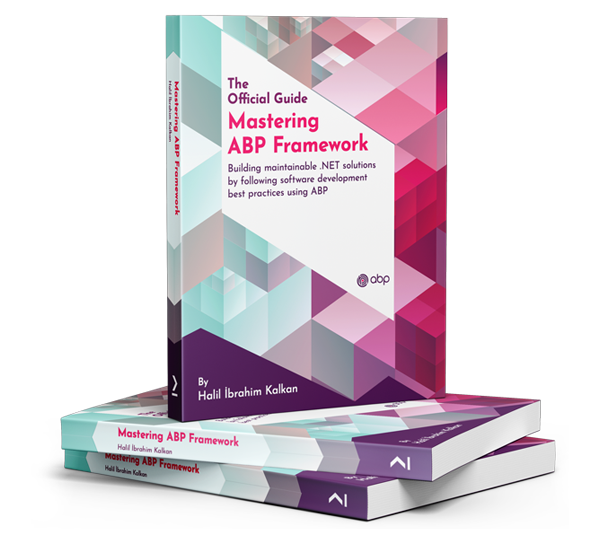
Mastering ABP Framework Book
The Official Guide
Mastering
ABP Framework
Learn More
Mastering ABP Framework Book
Made with ❤️ on ABP v10.8.0-preview. Updated on October 21, 2026, 11:09
1
ABP Assistant
🔐 You need to be logged in to use the chatbot. Please log in first.