

ABP Studio: AI Testing
ABP Studio has two AI-powered tests for the open solution:
- UI/UX Test checks the pages of the running applications and the UI code for broken layouts, accessibility problems, missing translations and pages that do not work as they should.
- Security Test reviews the code for vulnerabilities and attacks the running applications the way a penetration tester would.
Both tests are opened from the menu bar, use the same inputs, show their findings the same way, and can send the findings to the AI Agent to be fixed. They also run without the UI, from the ABP CLI and on CI.
Codebase and Runtime
Each test has two parts. Choose one of them or both before starting a test:
- Codebase reviews the solution's source code. It does not need a running application.
- Runtime tests the applications that are running in the Solution Runner. Tick them under Apps to Test.
If no application is ticked, Studio asks whether to review the code only.
The runtime part uses the applications for real. The UI/UX Test clicks buttons and submits forms; the Security Test sends real requests, including writes. Both can change or delete data, so run them on a development or test instance whose data you can lose.
Requirements
- An open solution.
- A working AI connection: an ABP AI plan, or your own model configured in AI Settings (see AI Agent Configuration). The Test with list chooses the model. A test makes many AI calls; with an ABP AI plan, they use its credits.
- For the runtime part, the applications running in the Solution Runner.
Only one of the two tests (or a re-verification) runs at a time.
Starting and Stopping a Test
- Click UI/UX Test or Security Test in the menu bar.
- Choose the mode: Codebase + Runtime, Codebase or Runtime.
- Tick the running applications under Apps to Test.
- Optionally pick a model in Test with, and click Configure Inputs to add test accounts or instructions.
- Click Start Test.
Stop Test ends the test after the step it is on and keeps the findings found so far; the status reads Stopping… until then. Clicking Stop Test again while it waits, and confirming with Stop Now, ends the test at once, and nothing from that run is kept. If the AI can no longer be used (no credits left, a rejected key, or the AI access was lost), the test stops the same way as Stop Test and says why.
With Incremental on, the code review covers only the files changed since the last test, and the findings of the other files are carried over. The running applications are always tested in full.
Test Inputs
Click Configure Inputs to set:
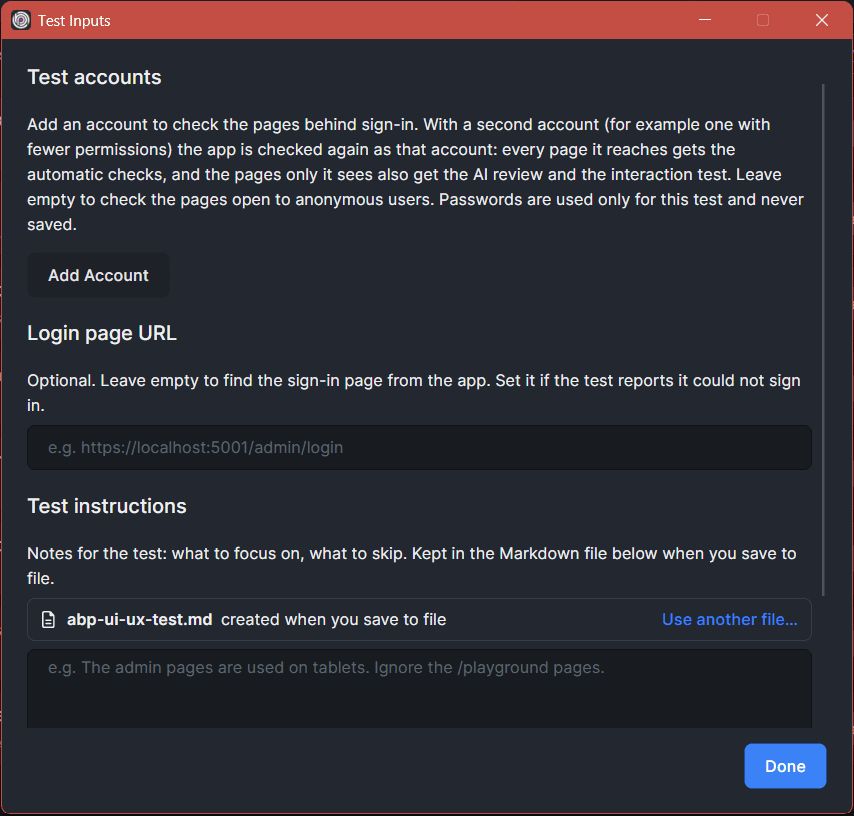
- Test accounts: up to two user names and passwords. With an account, the test signs in and also checks the pages behind the sign-in. How each test uses a second account is described on its page (UI/UX Test, Security Test).
- Login page URL: only needed if the test cannot find the sign-in page by itself. Use a path on the application, such as
/Account/Login, or a fullhttp://orhttps://address. A value that is not an address (such as a single word) is not used, and a warning is shown under the field. - Test instructions: free text that tells the test what to focus on or what to skip. They are kept in a Markdown file when the inputs are saved to a file; Use another file… picks a Markdown file of your own instead.
Signing in
The test signs in through the application's own login page, in a browser. When the login page is on a separate authentication server (for example, a tiered solution or an Angular application), the sign-in starts from the application, so that a single-page application completes its own login and receives its token; if that does not work, the given Login page URL is tried once.
The password is typed into the login form by Studio; it is never sent to the AI. If the application turns the password down, the test does not try it again, so a wrong password cannot lock the test account, and a warning says why the sign-in failed.
The inputs file
Save to File writes the inputs to the solution folder, so they come back when the solution is opened again and can be committed:
abp-ui-ux-test.jsonfor the UI/UX Test, with the instructions inabp-ui-ux-test.md.abp-security.jsonfor the Security Test, with the instructions inabp-security.md.
Passwords are never written to the file. Each account names an environment variable that holds its password; set it where the test runs, or type the password in Configure Inputs.
{
  "mode": "both",
  "model": "anthropic/claude-sonnet-5.5",
  "targets": [
    { "name": "Web", "url": "https://localhost:44302" }
  ],
  "loginUrl": "/Account/Login",
  "accounts": [
    { "username": "admin", "passwordEnv": "ABP_TEST_ADMIN_PASSWORD" },
    { "username": "viewer", "passwordEnv": "ABP_TEST_VIEWER_PASSWORD" }
  ],
  "instructionsFile": "abp-ui-ux-test.md"
}
| Field | Description |
|---|---|
mode |
both, codeReview or runtime. codebase is accepted too, as the CLI names it. |
model |
The model to test with. When it is not available, the default model is used. |
targets |
The running applications to test (name and url). Used by the CLI; in Studio, the applications are ticked under Apps to Test. |
loginUrl |
The login page, as in Configure Inputs. |
accounts |
Up to two accounts: username and passwordEnv, the name of the environment variable that holds the password. |
instructions / instructionsFile |
The test instructions, as text or as a Markdown file inside the solution folder. |
viewports |
UI/UX Test only: the screen widths to test the pages at (360, 768, 1280, 1920). |
The Security Test file also holds the test's policy: scope, suppress and severityOverrides. Saving the inputs from Studio keeps these fields as they are.
So that a cloned repository cannot send the passwords elsewhere, the targets and the loginUrl in the file must be local addresses (such as localhost), and the instructions file must be inside the solution folder. A file that cannot be read is not overwritten.
Results
The findings are listed with the most severe first. The last results of the open solution are shown again when the test is opened.
- View Results opens the results in a tab of their own.
- Export Results saves them as Markdown or JSON.
- Clear Results deletes them.
Each test also shows what it covered, and checks the findings of the AI a second time before reporting them; see UI/UX Test and Security Test. Few findings with a large coverage mean the application looks good; few findings with a small coverage mean the test could not reach much of it.
Fixing and Re-verifying
- Tick the findings to fix, or use Select All.
- Optionally pick the model for the fix in Fix with.
- Click Fix Selected. A new AI Agent session opens with the findings, and the agent changes the code there.
- When the agent finishes, choose Re-verify now, or tick the findings later and click Re-verify Selected.
If some selected findings are unconfirmed, Studio offers to re-verify them before changing any code.
Re-verification checks the findings again against the code and the running applications. If an application still runs the code from before the fix, Studio offers to restart it first. A finding sent to the agent shows as fixed only after it is re-verified, and a finding seen in a running application can only be re-verified while that application runs: Studio names the application to start, and leaves such findings as they are until then.
| Test | Re-verification results |
|---|---|
| UI/UX Test | Fixed, Still failing, Could not re-verify, Incomplete |
| Security Test | Fixed, Still exploitable, Not exploitable, Could not re-verify, Re-verify interrupted |
Troubleshooting
- Only the code was reviewed. No running application was ticked, so the test reviewed the code only. Start the application in the Solution Runner and tick it under Apps to Test.
- Pages behind the sign-in are missing, or the test could not sign in. Add a test account in Configure Inputs and check its password. If the test cannot find the sign-in page, set the Login page URL there.